
What's new in version 4
On this page some of the most significant changes are explained. To see the complete list of changes and bugfixes please click here. If you have an idea for a future feature or improvement, please add it to the feature suggestion board.
Version 4.23
2026-06-08Full list of changes in version 4.23
- Fixed bug where customn keyboard shortcuts would block certain text input keys
Version 4.22
2026-06-04Full list of changes in version 4.22
- Settings: Keyboard shortcuts: Fixed not being able to remove Alt shortcut modifier
- List replace methoid: Import from CSV file
- List: Right click menu: Added Copy Value to Copy sub menu
Version 4.21
2026-05-21Watch folder for changes

Note: this feature is only availble for registered users.
Change keyboard shortcut mappings

Configure default configuration for newly added methods

Full list of changes in version 4.21
- Watch folder for new files and add them to the list automatically
- Settings: Change keyboard shortcut mappings
- Settings: Option to disable loading last used configuration when adding methods
- Settings: Fixed changing field Word Separators not working properly
- New tag: <SubFolder:1> will return the name of a folder within the same parent folder as the file. When used on folders, it will return the name of a subfolder within the folder
- Timestamp method: Support changing created timestamp on macOS
- Remove method: When using backwards mode with a remove count bigger than the available characters the program did nothing
- Updated ExifTool
- Faster first start after install on Windows
- Various visual improvements
Version 4.20
2026-01-19Tag builder
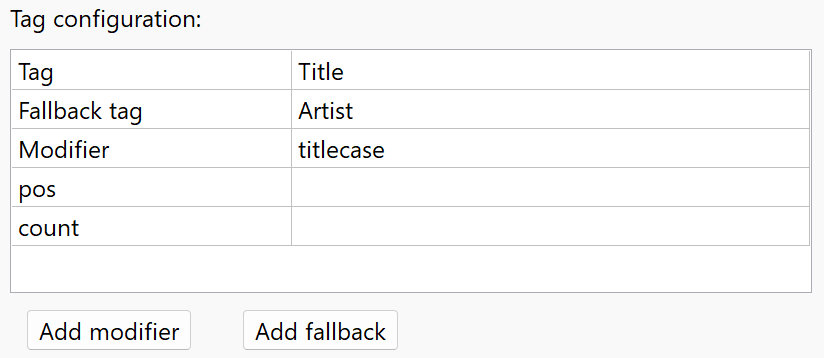
Full list of changes in version 4.20
- Pattern window: Tag builder for easy configuration of tag parameters and modifiers
- Fixed method list not loading when double clicking .aren file in Windows Explorer
- Improved support for long filenames
- Script Method: Upgraded JS engine to a newer version
- Script Method: Added optional parameters, index and count, to app.readFileText(filename, index, count)
- Metadata: Improved reading metadata from certain WAV files
Version 4.19
2025-11-05Changes to metadata writer
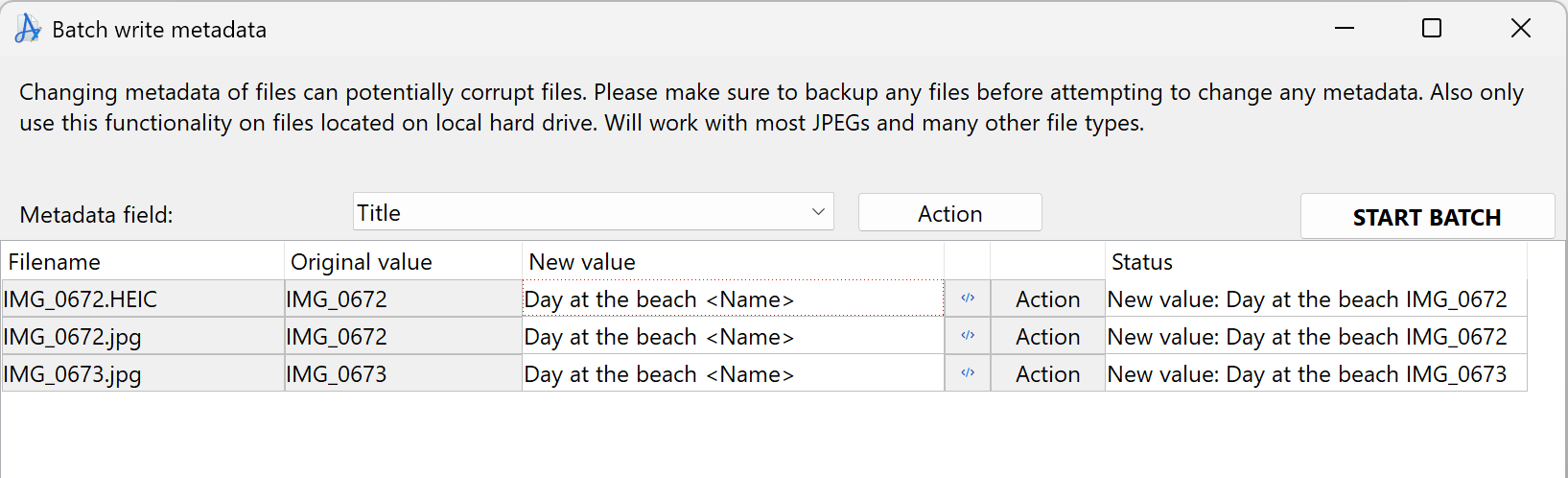
You can now also use tags when setting metadata values. This makes it possible to set metadata values based on other metadata values or file properties.
Name collision rule improvements
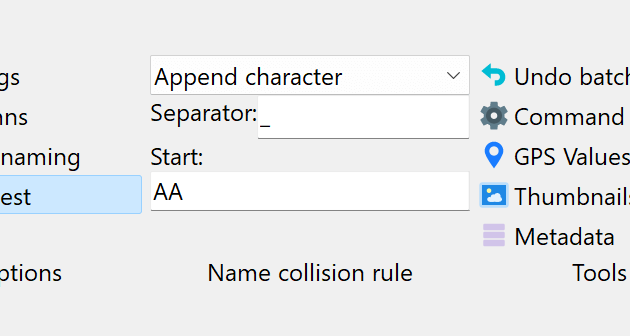
<Inc Alpha> tag.The Append Number rule now has a new option to start from a custom number instead of 1. To force a specific number length, append zeros, like this to get a 4 digit number:
0001.
Full list of changes in version 4.19
- Item Details Panel: Will show a message if metadata analysis is turned off in settings
- Folder Panel: Show selected folder in edit box
- Replace Method: Fixed named groups when using regular expressions
- List Replace Method: Button, Move To Bottom, when shown in a separate window did not work
- Command Palette: Recent method presets now available through command palette
- Command Palette: Will remember the last 5 used commands between program restarts
- MacOS: Program settings has moved to a different folder, to be more compliant with Mac conventions. Existing settings will be migrated automatically
- Portable mode: Will now check for write permissions for config files on startup
- Tags: <Duration> now has an optional parameter called unit. <Duration:mins> will return the total duration in minutes. <Duration:secs> will return the total duration in seconds. <Duration:hours> will return the total duration in hours
- Metadata: Better support for reading EXIF metadata from Canon RAW CR3 files
- Export: It is now an option to select which field to export when exporting list to .txt file
- List: When sorting timestamp columns, also sort by sub second if available
- List: The menu item Randomize Sorting in file list popup has been moved into the Sort By submenu
- List: Save List menu item in popup replaced by Export menu item
- Batch Write Metadata: Tags can now be used when changing metadata
- Batch Write Metadata: Changed UI for better support for processing larger batches
- Name Collision Rule: New rule, Append Character
- Name Collision Rule: Added Start Value configuration to Append Number
Version 4.18
2025-10-15Command search
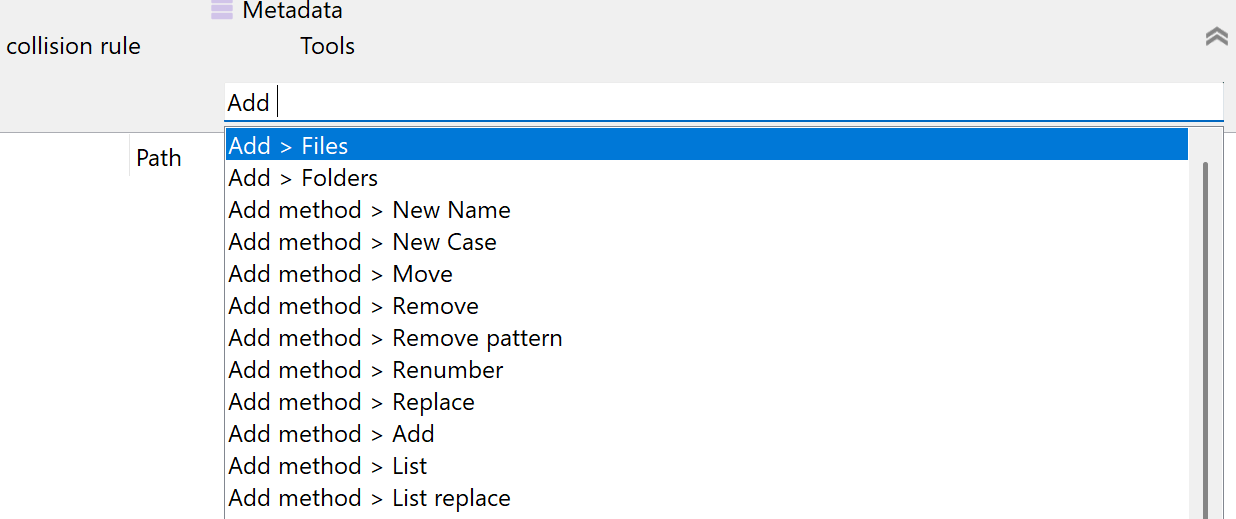
Ctrl+P (Windows) or ⌘P (Mac). It can be used to quickly find and execute commands in the program, like adding a specific method, opening settings, or adding files. Most features shown in toolbars and menus are available through the command search. Just start typing to filter the list of commands and press Enter to execute the selected command.
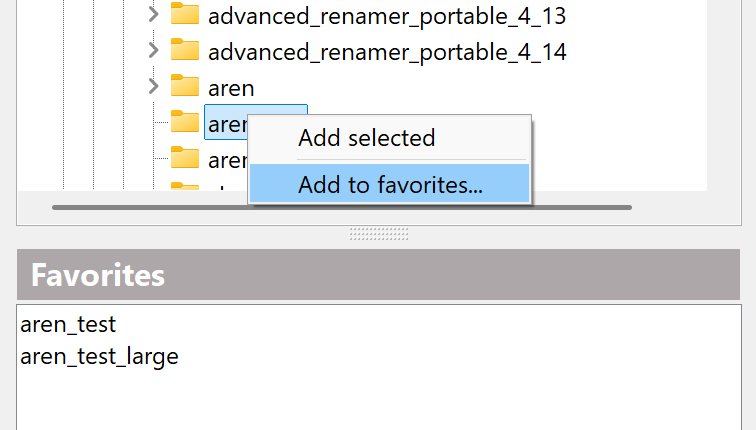
Configure favorite folders
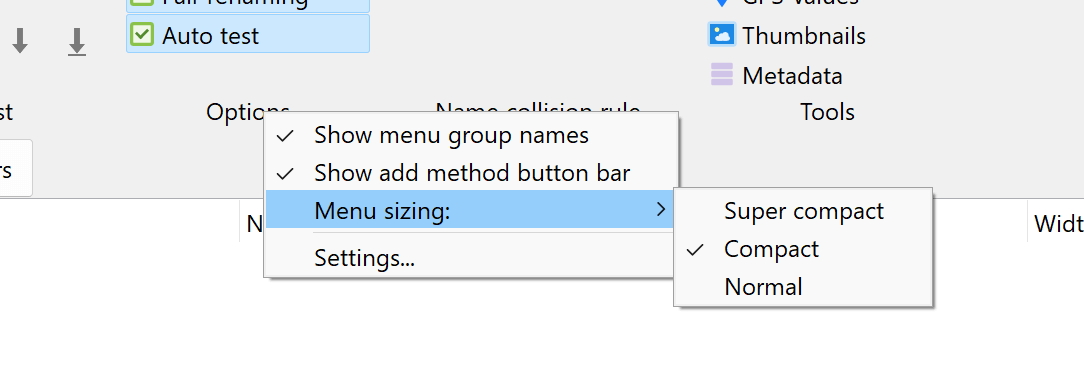
Quick change UI settings
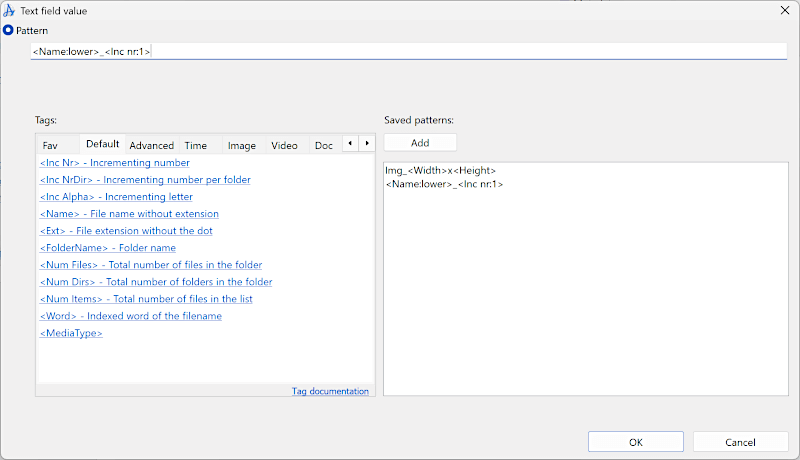
The Insert Tag and Pattern windows have been merged
Full list of changes in version 4.18
- Added support for searching commands by name through a new search field
- Folder panel: Configure list of favorite folders
- Right click menu on certain UI elements to quickly change UI related settings
- The Insert Tag window and the Tag Pattern window has been merged into one window
- Fixed some issues with email tags: Did not support names containing comma (,). Also fixed issue with the FromEmail tag not working
- Progress bar in batch progress window was too wide for the window
- Updated JavaScript engine to a newer version
- Fixed <RSubstr> tag being off by one when second parameter is a search pattern instead of a numeric value
- Added row move buttons to list replace method when shown in a separate window
- When loading a method list with more than 500 methods, the program will now show a message and only load the first 500 methods, instead of crashing
- Properly read framerate from .mkv files and .mp4 files
- Read audio bitrate from QTFF based file formats, like .mp4, .mov, and .m4a
- Added two new tag modifiers :multiply and :divide
Version 4.17
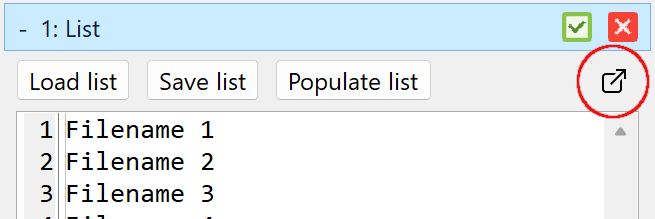
2025-09-26Open List and List replace in new window
Search
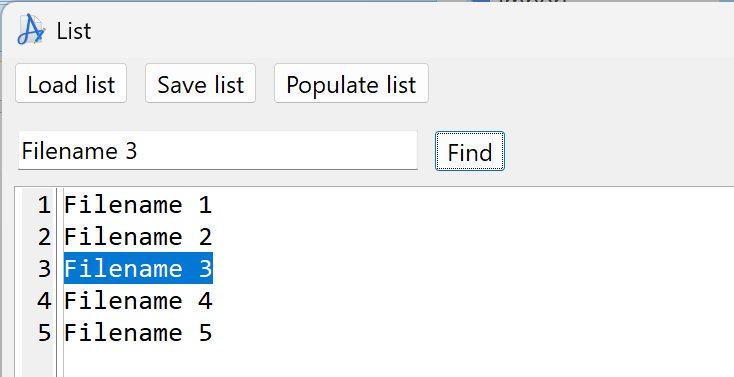
Ctrl+F/⌘F. You can also search the main list with the same shortcut.
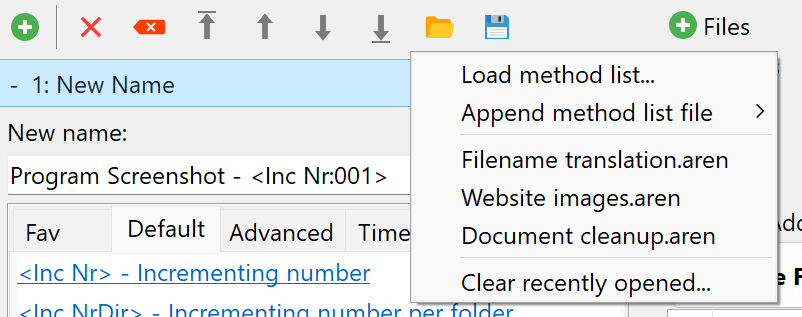
Updated UI for loading and saving method lists
Script method: formatDate()
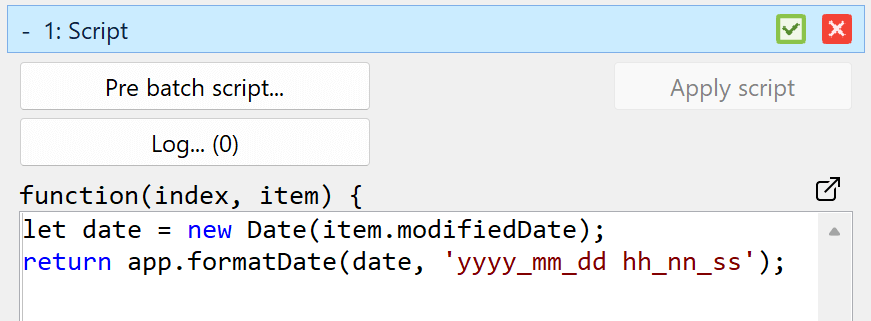
formatDate(date, format), taking the same format parameter as the Datetime tags.Example of use:
var date = new Date(item.modifiedDate);
return app.formatDate(date, 'yyyy_mm_dd hh_nn_ss');
Full list of changes in version 4.17
- List method and List Replace method can be opened in a new window
- Added search functionality to Script method, List method, and List Replace method, when shown in a separate window
- Added search to item list in main window
- UI update for recent methods. Is now in a submenu of the load button instead of a dropdown
- Scripting: The values item.newModifiedDate and item.newCreatedDate can now be updated from script
- Added method app.formatDate(date, format) to scripting method
- Settings: Added options to always use strict mode in scripts
- Item details: Added Copy Tag to right click menu
- New option in list right click: Unmark items with errors. Also updated logic behind remove items with errors
- Fixed an issue where dates of folders could not be changed on Windows
- When the main menu was in super compact mode, the show thumbnails button didn't work
- Multi select support in columns window
- Faster load time for Exiftool at startup
Version 4.16
2025-09-01Metadata writer is back
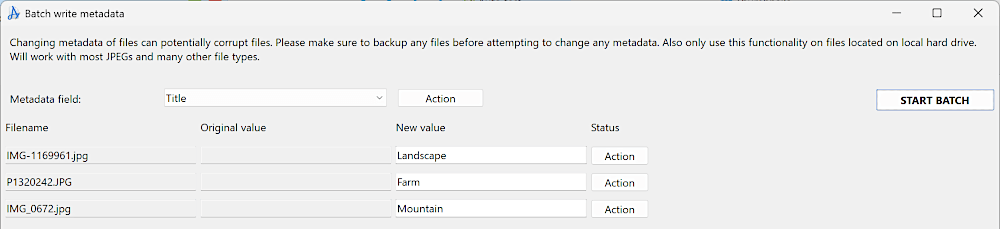
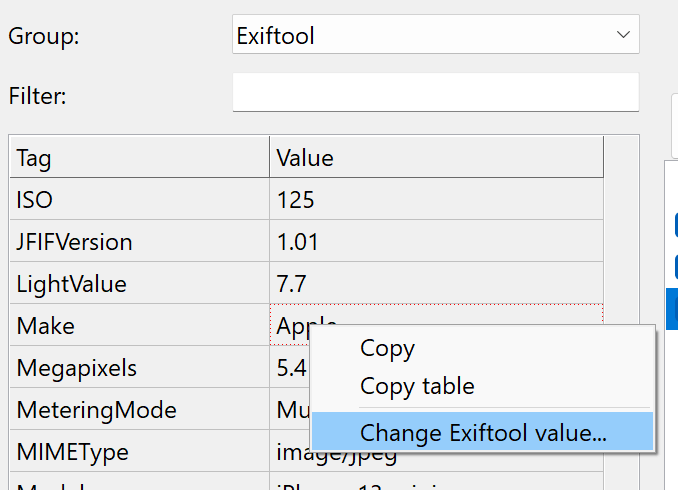
Remember, not all formats and fields are supported. The program will automatically adapt based on file extension and selected metadata field.
Import data in Script method
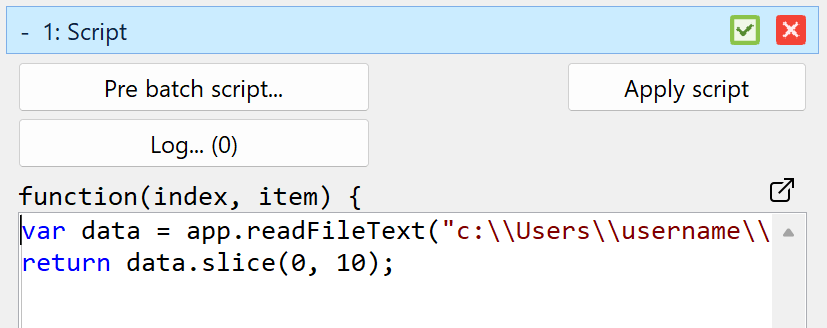
readFileText() and readFileLines() functions. This makes it possible to create scripts that can read data from external files and use that data to rename files. By default, the program will only read from CSV, JSON and text files, but this can be changed in the settings window.At the same time the tags
<File Content> and <File Line> is now considered deprecated and will be removed at some time in the future. The tags are too complex for tag based renaming. The functionality is best acheived through scripting instead.Learn more about the new import functionality in the user guide.
Apply script shortcut
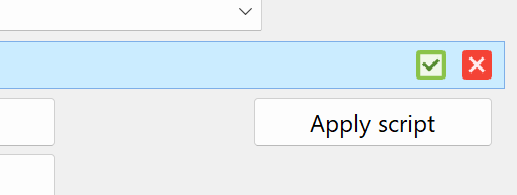
Windows shortcut:
Ctrl + EnterMac shortcut:
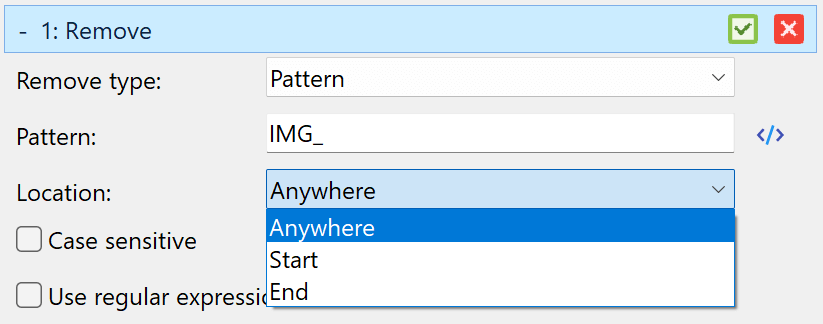
⌘EnterPattern location in Remove method
Full list of changes in version 4.16
- The metadata writer has been reintroduced with a couple of new features
- Item details panel: Change values by right-clicking when the Exiftool group is selected
- Script method: Load the contents of a file into a variable using the new readFileText(filename) and readFileLines(filename) functions
- Script method: A shortcut has been added for the Apply button (Windows: Ctrl + Enter; Mac: Cmd + Enter)
- Script method: Added item.csv(columnIndex) function for retrieving data previously imported from a CSV file
- Script method: Copy shortcut didn't work in the Log window
- Remove method: New configuration option Location, with the options Anywhere, Start, and End, for use with Remove Types: Pattern, Word characters, Non-word characters, Numbers, and Not numbers
- The program will ask for confirmation when loading a method list file containing a Script method
- Export window: When selecting an output format, the correct options did not always appear
- The buttons for changing the menu size are now bigger and easier to see
- Fixed an issue with Exiftool where metadata wasn't retrieved for a large list when a single file had bad data
- Fixed an issue with the List Replace method when using a colon in the Key field
- Some issues preventing texts from being translated have been fixed
- The new version number will now be shown when new versions are available
- The tags <File Content> and <File Line> have been deprecated in favor of the script functions readFileText and readFileLines. These tags still work, but will be removed in a future version
Version 4.15
2025-08-12New tag: <Delimiter>
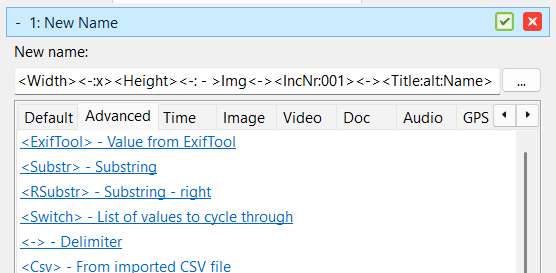
<Title> - <Artist> - <Album> - <Year>If the
Album value is empty, you end up with a filename like this:
Heroes - David Bowie - - 1977To prevent this, a new Delimiter tag has been added with special logic to not appear in the beginning or end of the filename and will not repeat. The tag can be used like this:
<Title><Delimiter: - ><Artist><Delimiter: - ><Album><Delimiter: - ><Year>The result for the same case as above will be:
Heroes - David Bowie - 1977The tag can also be used with the short syntax
<-> to make it easier to type, and if all delimiters are the same, only the first has to be defined with a parameter:
<Title><-: - ><Artist><-><Album><-><Year>Multiple delimiter parameters can be used in the the same pattern:
<Title><-: - ><Artist><-><Album><-><Year><-><Track><-: of ><TrackCount>
Short syntax for default and alternative tag values
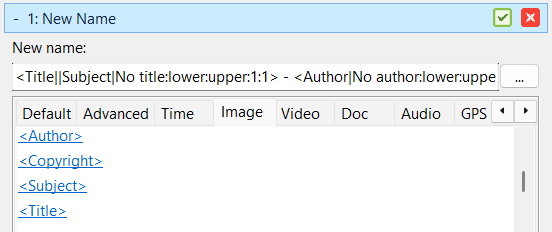
<Artist:default:Unknown artist>
<Artist:alt:Performer>
You can now use the short syntax with
| like this:
<Artist|Unknown artist>
<Artist||Performer>
Single pipe
| is short for using the default tag modifier, which will default empty values to a string, and double pipe || is short for using the alt tag modifier, which will use the value of the alternative tag if available.As oppose to the syntax based on tag modifiers, the short syntax will always appear before any parameters, and parameters and tag modifiers will always be applied to the resolved tag value. Therefore, this syntax:
<Artist||Performer|Unknown artist:lower>Is equivalent to this using tag modified:
<Artist:lower:alt:Performer:lower:default:Unknown artist:lower>Learn more about tag fallback.
Full list of changes in version 4.15
- Added <Delimiter> tag which will not appear in the beginning or end of filename and will not repeat. Will primarily use the short syntax: <->
- Support short syntax for default and alternative tag values: <Artist||Performer|Unknown artist> will return the value of Artist if available, otherwise Performer, and if neither is available, it will return "Unknown artist"
- Added special tag <MetaData:fieldname> to access metadata fields that has the same name as built-in tags
- Email Date field renamed to DateTime
- Script method will show pre script button and log button in bold text if they have values (Windows only)
- The program did not always ask for language when starting for the first time
- Fixed an issue where the program could potentially crash at startup when the Script method was loaded
- Fixed some icons not always shown in the correct resolution on Windows
- At certain DPI scales on Windows batch methods would have too much spacing at the top
- Fixed export to HTML in details with images, when printed to PDF, always had an empty page at the end and no page break after first item
- Script method: JS Log window: Escape key now closes the window
- Script method: The value of the item checkbox is now available in scripting
- Script method: log method now accepts multiple parameters
- Script method: Small performance improvement
Version 4.14
2025-08-05New tag: <Switch>
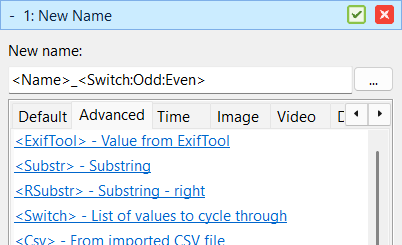
This is how you can switch between odd and even or a sequence of letter:
<Switch:Odd:Even>
<Switch:A:B:C:D>
Tag modifiers
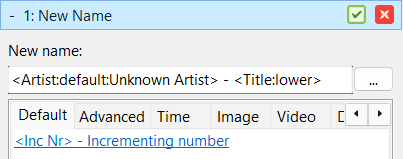
<Artist:upper>Or the first 10 characters of the artist name:
<Artist:substr:1:10>Or both:
<Artist:substr:1:10:upper>Full list of tag modifiers:
default:textalt:tagnameappend:textprepend:textsuffix:textprefix:textpad:length:charactertrimupper:pos:countlower:pos:counttitlecase:pos:countsubstr:pos:countrsubstr:pos:countremove:pos:countinsert:text:posreplace:replace:withword:index:countadd:numbersubtract:number
To be able to implement this new feature, it was necessary to completely rewrite how tags are parsed. As a side effect, the parsing is now 30% faster for larger batches.
Changes to Remove Method
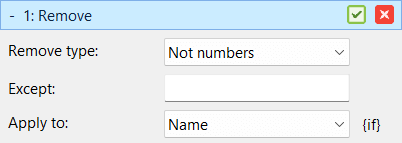
Some remove types now have the option to get a list of exception characters. This can be used if you want to remove all special characters except a few. For example, you can remove all non-word characters except the dash (-) character.
Thumbnails in item list
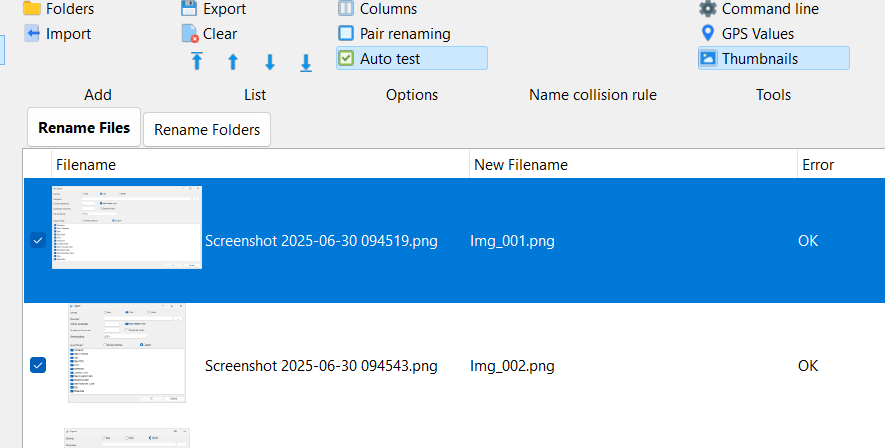
The source of the thumbnails is the same as for the preview panel. Future versions will add support for extracting thumbnails from more file formats.
Export to HTML
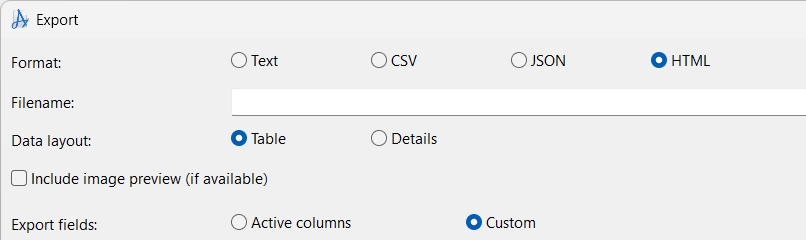
Support for email metadata
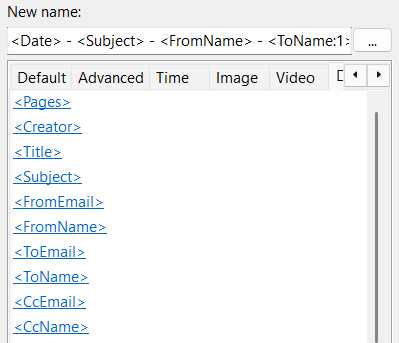
<Subject><DateTime><From><FromName><FromEmail><To><ToName><ToEmail><Cc><CcName><CcEmail><Bcc><BccName><BccEmail>
<ToName:1> or <ToEmail:1>.
Learn more about the new email tags.
New parameter for Word tag
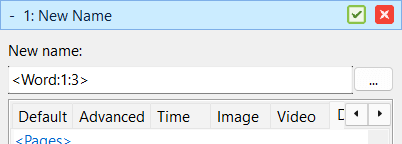
<Word> tag has been extended with a second parameter to specifify the number of words to return. <Word:1:3> will return the first three words of the filename. Any word separator between the words will be preserved. If the filename is "This is a long filename" the result will be "This is a", while the result of "This-is-a-long-filename" will be "This-is-a". If the filename has less words than specified, it will return all the words.
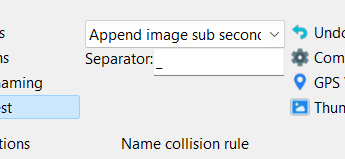
Exif Sub second
Full list of changes in version 4.14
- New tag: <Switch:A:B:C> which will alternate between the values A, B, and C for each item in the list
- Tag modifiers. Added support for modifiers in tags, <Artist:lower> or <Artist:substr:1:10> will return the artist in lower case or the first 10 characters of the artist name
- Remove method: Added Remove Type: Not numbers
- Remove method: Added field Except (character exceptions) for use with Remove Types: Word characters, Non-word characters, Numbers, and Not numbers
- Support reading metadata from .epub e-book files
- Support reading metadata from email formats .eml and .msg email files
- Native support for reading metadata from .raf files
- Item details: Added Copy Table to right click
- Show thumbnails in item list
- Settings: Disable replacing unsupported characters from parsing tags
- Settings: Disable code suggestions for script method
- New export options: Export to HTML
- List right click: Copy to clipboard
- Added a second parameter to <Word:X> tag to specify the number of words to return, like this: <Word:2:3> will return 3 words, starting from word 2
- New faster tag parser
- Fixed random tag <Rand> in some cases giving the same value over and over
- Script method: Rearranged buttons and moved JS Console button from main toolbar to script method panel, renamed to "Log" showing the number of log lines on the button
- Fixed <Inc Nr> tag sometimes getting the zero padding wrong when the start value is between 2 and 9
- Improved performance of <Inc Nr> tag
- Fixed the Last Result panel showing buttons on top of each other when using some languages
- List method: Right click popup was missing
- Improvements when converting methods from version 3 to version 4
- Improved how audio and video codecs are read from .mkv files. Note, <CodecId> is now divided into Audio and Video tags, and <CodecId> is no longer available
- List replace method: Fixed bug when using tags on other lines than the first line
- List replace method: The remove button did not work for the top row
- Export of CSV will no longer include columns with no data
- Fixed reading BitDepth from .mov files
- Sub second values are now treated as text instead of numbers. The reason being the Exif spec not specifying how many digits should be used, and some cameras using 2 digits, while others use 3 or 4
- Correcting how certain Exif values are displayed
- Word separator limited to only support ASCII characters to avoid unicode issues
- Added Persian and Hungarian translation
- Fixed some unicode issues in new case method
Version 4.13
2025-06-25Move, Delete, or Rename existing target files

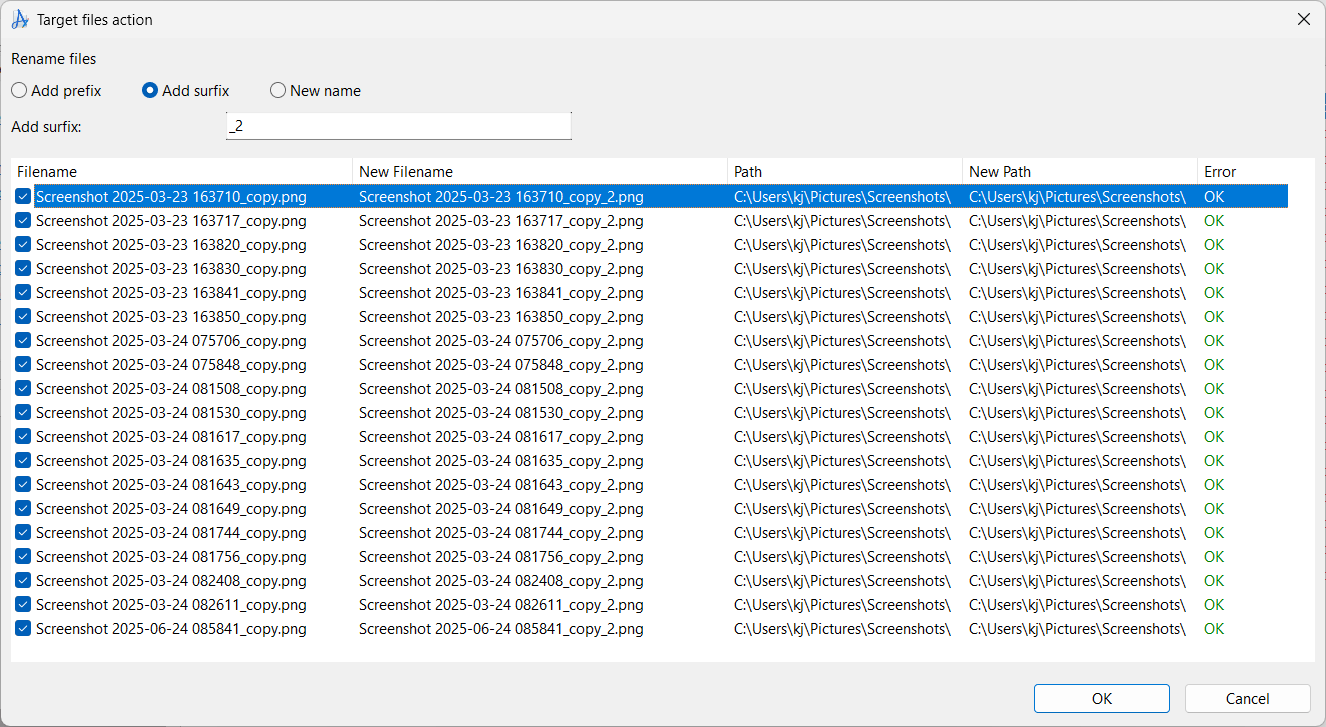
- Move existing files to a new location
- Move existing files to recycle bin
- Rename existing files
The buttons will show automatically in panel in the bottom of the main window, when at least one item has the "File already exists" error.
When renaming or moving files with this feature, the program will use Advanced Renamer technology to produce the new names and file paths, which means you can use the same tags as in a standard renaming batch and you can even revert the action.
Note, this only works for files, not folders.Export list, including all metadata
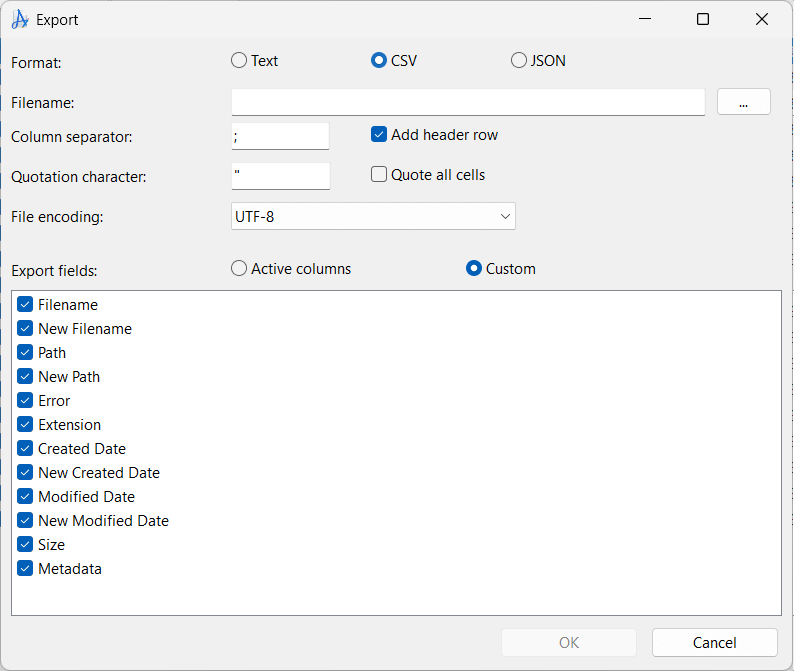
A later version will extend the support for importing files and enriching the list of files with more data from external sources.
Full list of changes in version 4.13
- When new filename already exists, the program will now give the option to move or rename the existing target files
- New export Window: Export to TXT, CSV, and JSON files
- Fixed Timestamp method for use with folders on Windows
- Will give an error when starting a renaming batch and there are no methods added
- The program is now less likely to crash when analysing corrupted MP4 files
- Support for reading metadata from .ivf files
- Support more tags from .wav, .ogg, .webp, and .aiff files
- Alias metadata fields, Channels -> AudioChannels and SampleRate -> AudioSampleRate added for better compatibility
- Improved reading of metadata from .ogg, .ogv, and .mp3 files
- Show a summary of error codes in the pre batch window
- Changed implementation of Copy batch mode to preserve timestamps and file attributes on file copy
Version 4.12
2025-06-10Full list of changes in version 4.12
- Upgraded regular expression engine for use in renaming methods
- Replace method: Named group substitution is now supported in regular expressions (e.g., (?<name>.*) and ${name})
- Program is now less likely to crash when config file is corrupted
- Fixed an edge case bug in List Replace method
- Fixed large file support in ExifTool integration
- Improved reading XMP metadata from MP4 files
- ExifTool field names sometimes showed up in lists where they were not supported
- Will no longer show error "Extension changed" when new name is blank
- Disc and DiscCount metadata now correctly recognized for MP3 files
- Item details would sometimes show the same fields multiple times
- Additional metadata fields is now supported for MP4 files: AudioFormat, AudioChannels, AudioSampleType, AudioSampleRate, CompressionID, CompressionName, BitDepth, XResolution, YResolution
- More robust handling of MP4 files with corrupted data
- Added support for extracting metadata from some older QuickTime .mov files
- Fixed an issue reading GPS metadata from image and video files, when formattet in a certain way
- Improved MKV file metadata support
- Added support for metadata fields AudioFormat, AudioChannels, and AudioSampleRate for AVI files
- Import from CSV did not remember the last used column index for original filename
- Fixed name collision rule "Append image sub second"
- When using name collision rule "Append image sub second", the rule will now be applied to all items in the list with the same name
- Improved performance for JPEG files containing long XMP Extended metadata
- MacOS: Item preview panel will now use embedded thumbnails for JPEGs for better performance
Version 4.11
2025-03-31Full list of changes in version 4.11
- Fixed an issue where the menu bar would have the wrong height when starting the program with menu in super compact mode
- Script: Re-added the item.GPSExists property
- Fixed move method, when moving in backwards mode and using Move To value longer than filename length
- Fixed not being able to change filename and timestamp in a single batch
- Could not load Norwegian language file
Version 4.10
2025-03-24Automatic method titles
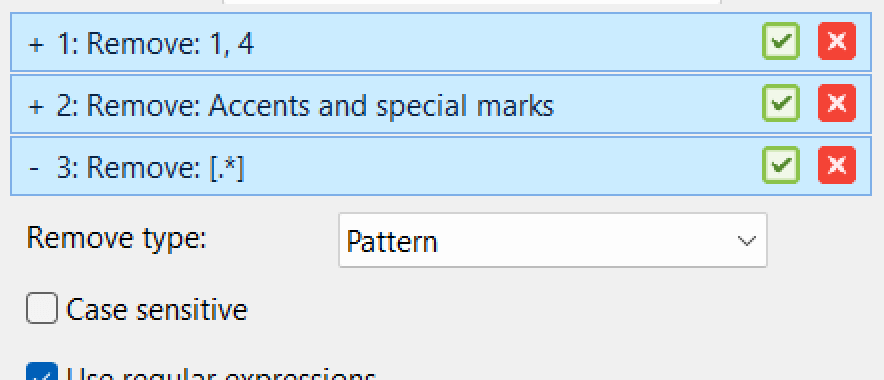
Not all methods will support this (Script, List, List Replace, and Trim). Those that are list based does not have an obvious basic info to show.
New modes for Remove method
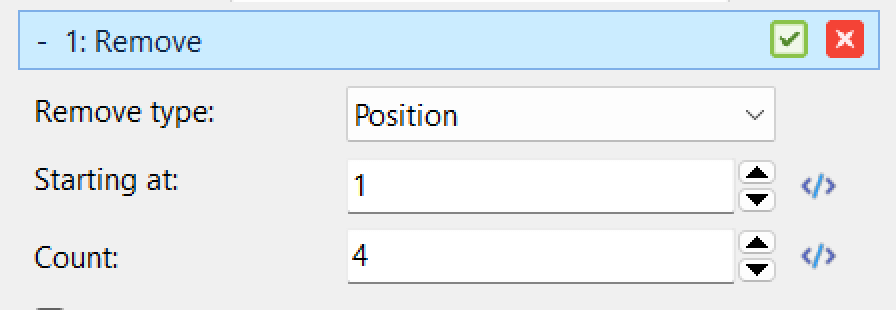
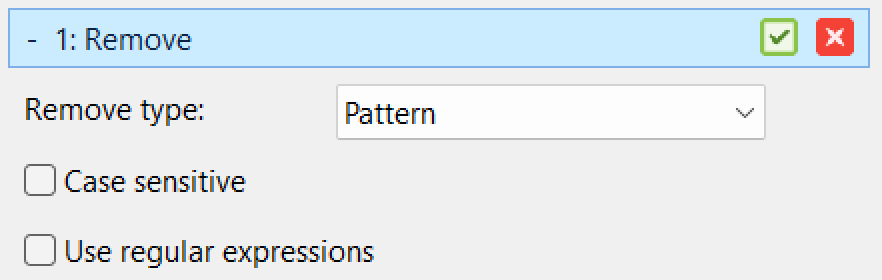
The new types are:
Pattern - Works like the Remove pattern method.
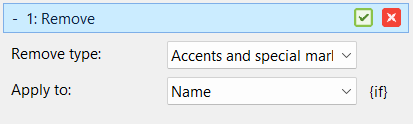
Accents and special marks - For easy removal of accents and special marks, also known as diacritics.
Word characters
Non-word characters
Upper case - Remove all characters that are upper case.
Lower case - Remove all characters that are lower case.
Character list - A list of characters to remove.
Numbers - Remove all numeric values.
This change effectively makes the Remove pattern method redundant. Later versions of Advanced Renamer might not be able to create new Remove pattern methods, but full backwards compatibility will be maintained.
Remove character accents
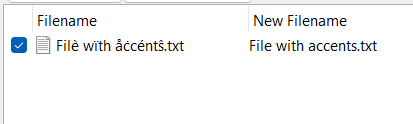
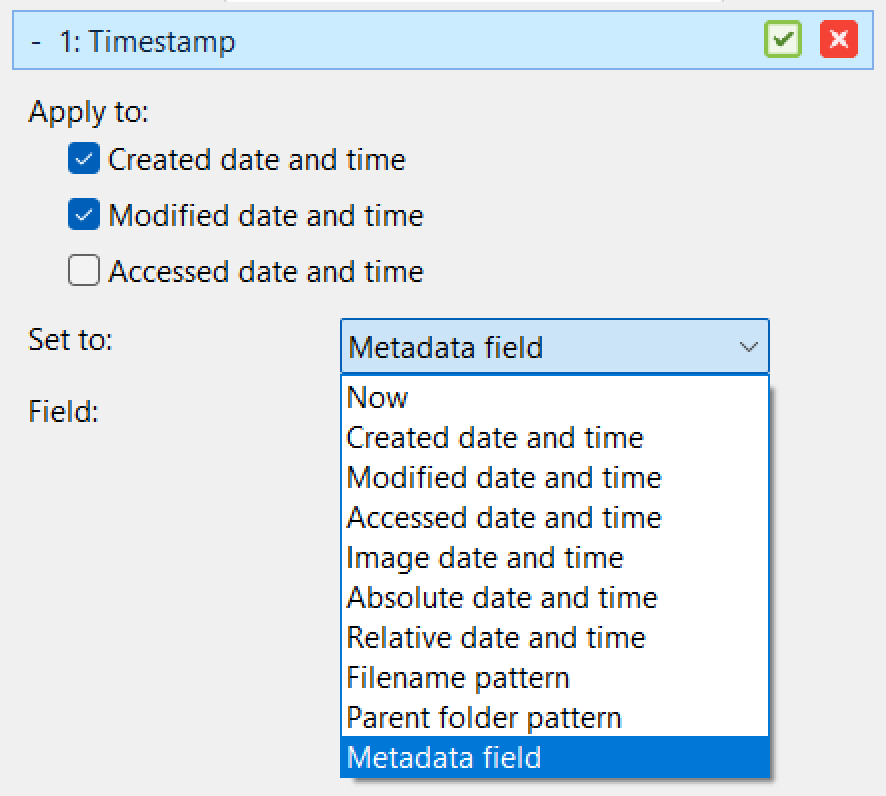
Layout changes for Timestamp method
Some settings have moved
Full list of changes in version 4.10
- Always show all batch modes, but show an error if copy mode is chosen in folder mode
- When multiple methods of the same type is used, the title will show basic information about the method configuration
- Reorganized the settings window
- Remove method changed to support several remove types: Position, Pattern, Accents and special marks, Word characters, Non-word characters, Upper case, Lower case, Character list, and Numbers
- Various performance improvements
- Changed how method panels are rendered
- New layout for the timestamp method
Version 4.09
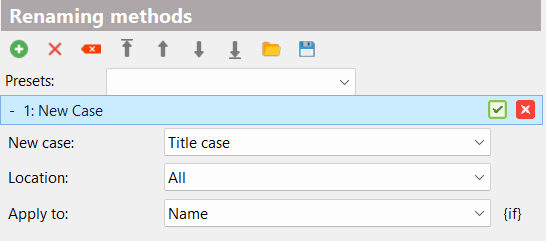
2025-03-12Titlecase
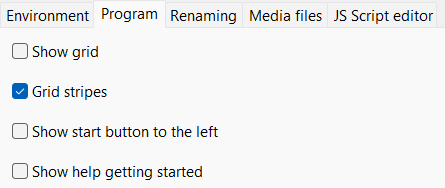
Stripes in list
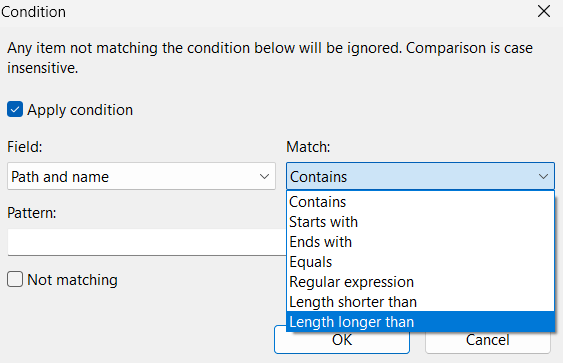
Method condition improvements
Full list of changes in version 4.09
- File sizes formatted in bytes was not displayed correctly for files larger than 2 GB
- Better support for GPS coordinates read from MP4 files
- Improved the programs ability to remember the last used folder in Folder Panel
- New case: Added Title case option as a new case type
- New case: Added support for inverting character case when using regular expressions
- New name method: Fixed adding tags with the tag links when the cursor position was at a multi byte character
- Fixed bug where <Day> would show the numeric day -1
- Changing the "Field for image date time operations" in Settings did nothing
- Slight change to layout of method header
- Setting to show list with stripes
- Fixed timezone issue when changing timestamps on Windows
- Changes to better support different default Windows text sizes
- Fixed an issue where metadata wouldn't be extracted correctly from PDF files
- New method condition fields: "Path and name" and "New path and name"
- New method condition matches: "Length shorter than" and "Length longer than"
Version 4.08
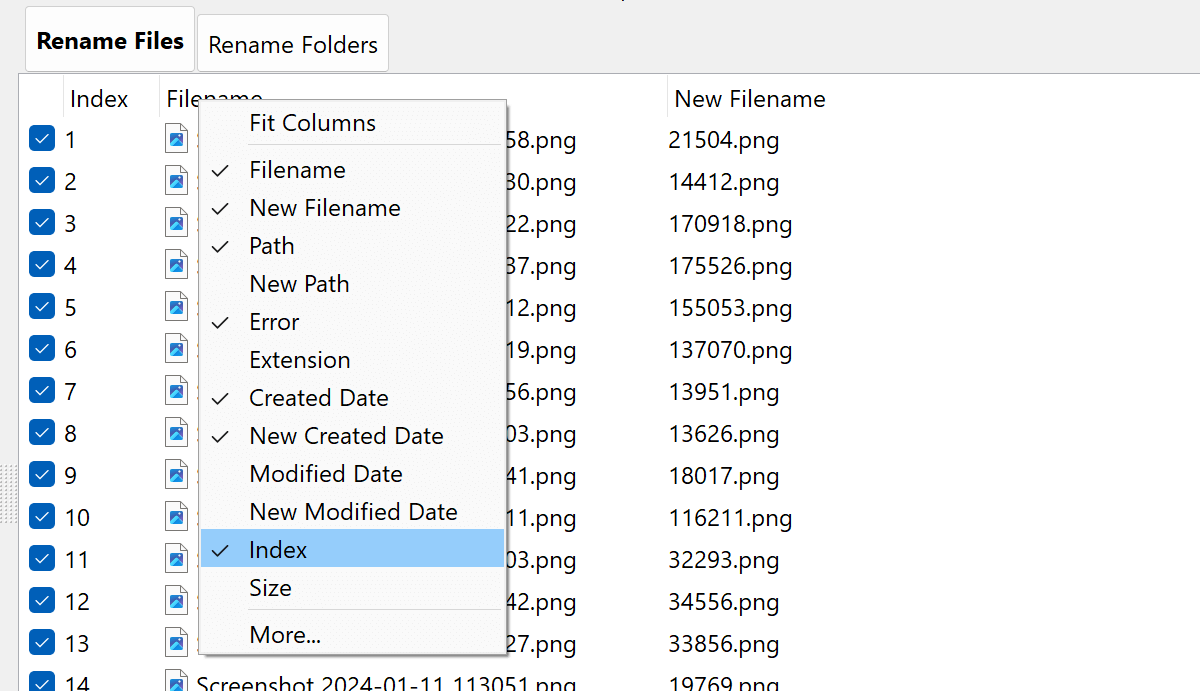
2025-01-17New column showing list index
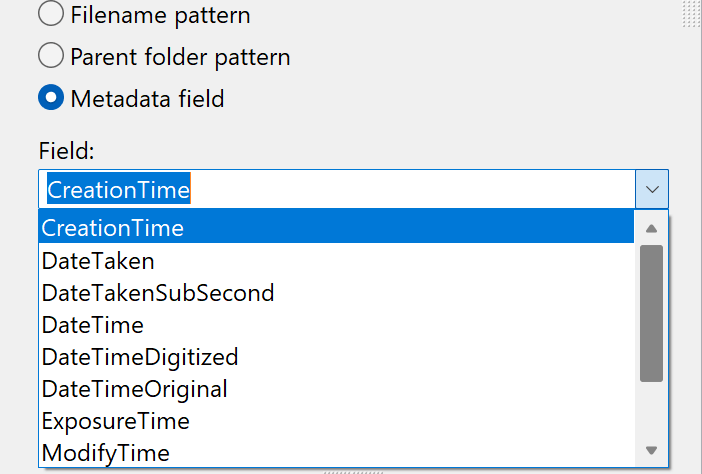
Set file timestamps to metadata value
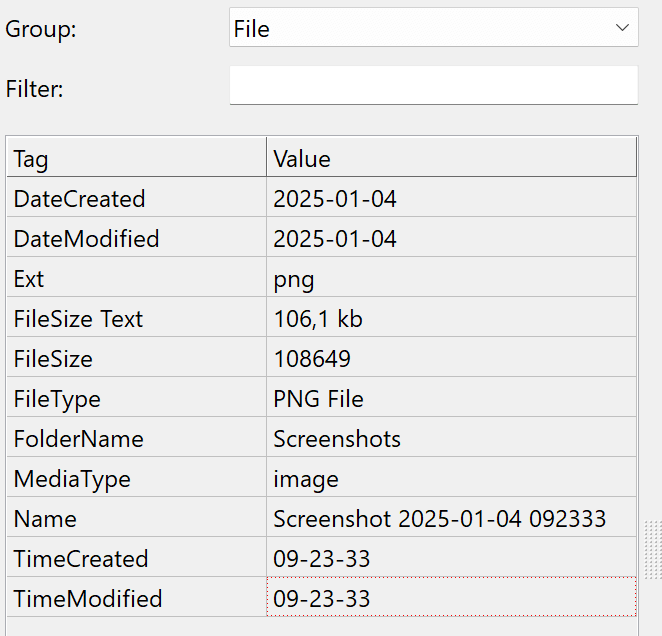
File details moved to new location
See details of CSV Data import
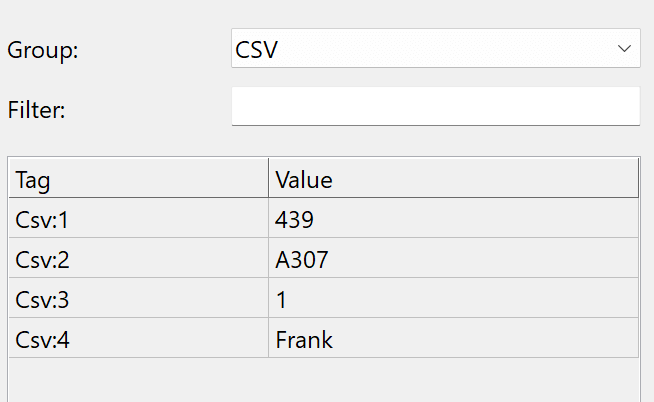
<CSV:X> tag. To show
the values imported for a file, select the newly added CSV in the group dropdown in the item details panel. It will show up
after CSV values are imported. Select a value and click Copy tag and insert it into the renaming method of choice to use the value
in the renaming batch.
Full list of changes in version 4.08
- New column: Index showing the item index in the list
- Fixed an issue where the new names wasn't automatically tested when moving items, toggling the checkbox, or sorting columns
- Customize columns window: When removing a column the next column couldn't be removed before the listbox was selected again
- Modified date and time is now displayed correctly when loaded in a different daylight savings time offset than current time on macOS
- Made Timestamp batch method available for macOS
- New option for Timestamp method: Metadata field. Set file date to any well formattet timestamp found in the metadata of the file
- Changed format of timestamps in the list to yyyy-mm-dd hh:nn:ss
- Changing file level date and time did not always work well when using multiple Timestamp methods in a single batch
- Added tag <Filesize Text> which will return the file size in a human readable format
- Tag <Filesize> renamed to <Filesize B>. The tag <Filesize> will still work for backwards compatibility
- Item details window will show file level details in a separate group in the dropdown
- When importing data from CSV file, the values will be shown on the item details panel
- Scripting: Added new field to the item object: createdDate, modifiedDate, isAudio, isImage, isVideo, isDocument, mediaDate, mediaType
- Scripting: Improved auto completion when typing
- List method: When using "Populate list" for folders containing a dot, it would truncate the folder name to the last dot when using "Apply to Name"
- <Artist> audio tag will now also recognize the field author as an alias. Tag <Album> will also use the field AlbumTitle if available
- Fixed a bug where the program would not run ExifTool if configured to use it in the saved settings before starting the program
- Adding files to the list would not always use a natural sort order when sorting filenames with numbers
- List replace: Refixed an issue where the program would not replace the character = when using this method
- Changed how the program checks for updates on macOS
Version 4.07
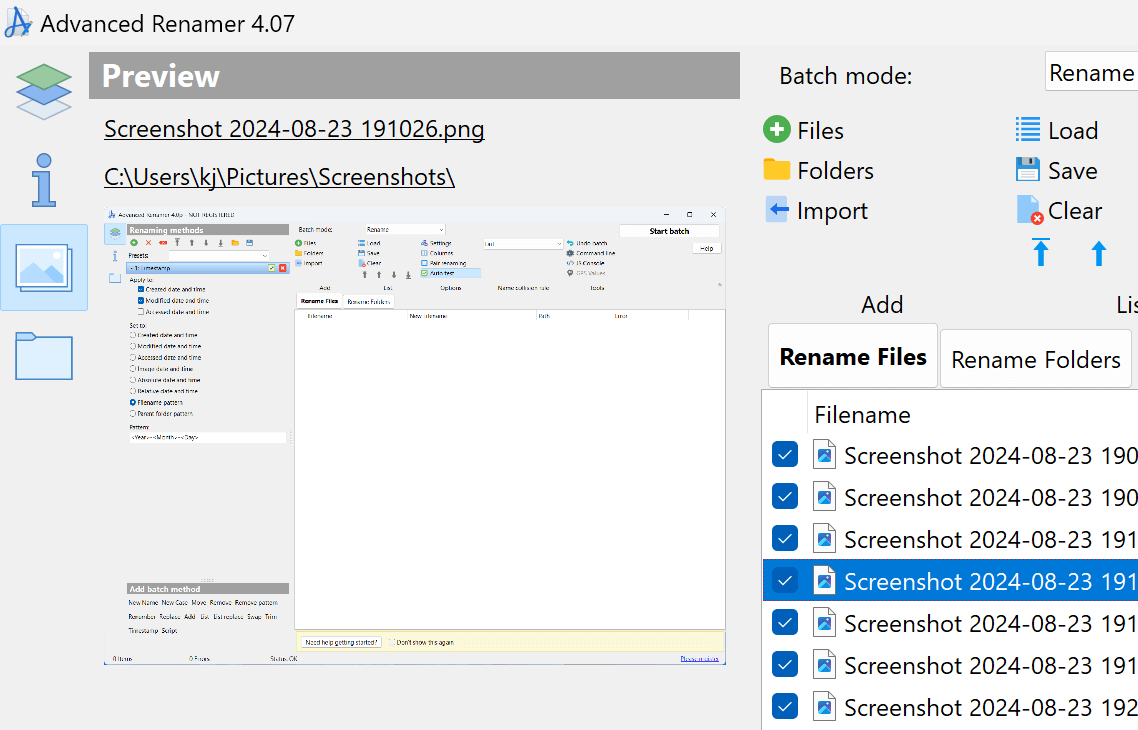
2025-01-04Image preview
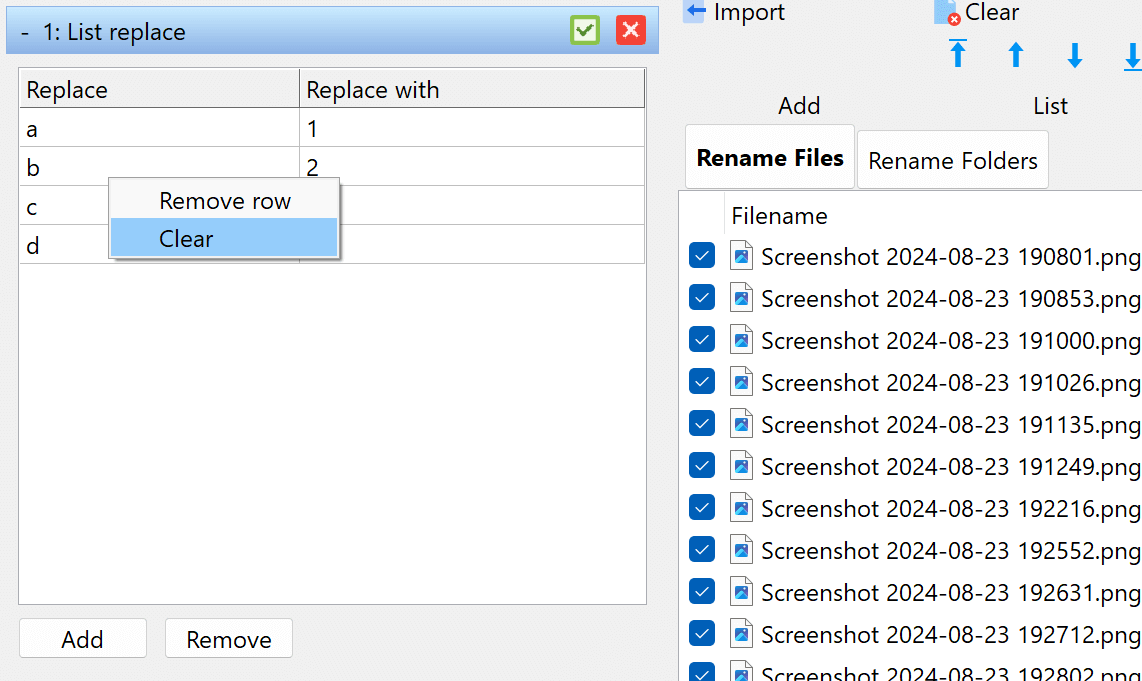
New buttons in List Replace
Changes to Artist tag
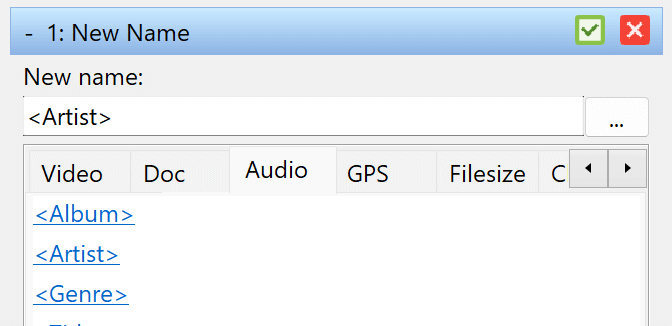
<Audio Artist> tag
will now also return the value of the Lead Performer tag if the Artist tag is not available.
Metadata support
For a full list of supported formats click here.
Full list of changes in version 4.07
- <Audio Artist> will now also return the value of Lead Performer if available
- Support metadata from JPEG2000 files (.jp2, .jxl, .jpf, .jpx, .jpm, .mj2)
- Support for more raw image file formats
- Support metadata from Ogg file format (.ogg, .ogv, .opus)
- Support metadata from Matroska based files (.mkv, .mka, .webm)
- Support metadata from MPEG-2 based files (.mpg, .mpeg, .mpv)
- Added item preview panel for quick preview of images
- Item details: Filename can now be clicked to open file in default program
- List replace: Added remove button, and added Clear list button in right click menu
- Fixed an issue where the program might consume more memory than necessary when reading metadata from files
- List replace: Fixed not being able replace the character =
- When renaming folders with a dot in the name, the part after the dot would be added to the folder name twice in the list
Version 4.06
2024-11-11MediaType tag
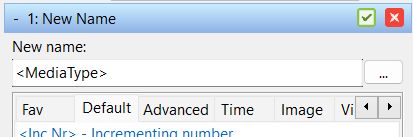
<MediaType> do get the media type group name. Advanced Renamer groups files into 5 categories. Use
this tag to extract this value. The media type is determined by the file extension and is not based on the actual content.
Possible values are: image, audio, video, document, and other.
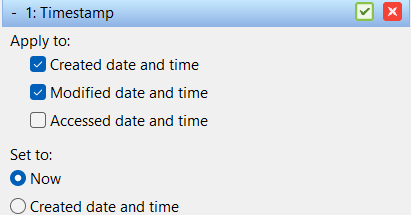
"Now" option added to Timestamp method
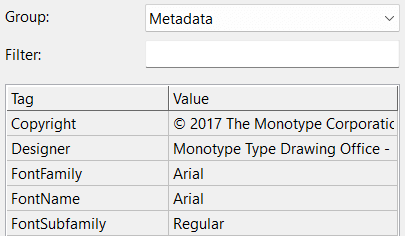
Read metadata from font files
Recognize any date and time metadata value
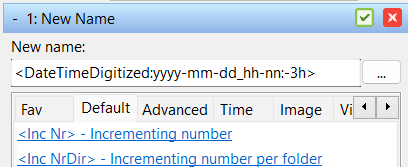
yyyy-mm-dd_hh_nn_ss. You can even adjust the timestamp value with the adjustment
parameter added in version 4.04.
Full list of changes in version 4.06
- New tag on the default tab: <MediaType> which will return the media type of the file. The media type is determined by the file extension and is not based on the actual content of the file. The media type is one of the following: image, audio, video, document, or other
- New "Change to" option for Timestamp method: Now
- Added support for reading metadata from the font file formats .ttf and .otf
- Any metadata value with a key containing "time" or "date" and has a value in the format "yyyy-mm-dd hh:mm:ss" will be treated as a date and time value and can be formatted and adjusted as such
- When setting relative date and time, the input boxes did not allow negative values
- Before starting a batch containing errors, a warning will be shown, if "Stop batch" is clicked, the main window would become unresponsive
- Blue color when name collision rule detected changed to a brighter blue when dark theme is used
- The convenience tags <Img DateOriginal>, <Img DateCreate>, <Img TimeOriginal>, and <Img TimeCreate> no longer use ExifTool to retrieve the value
- Clear list now also clears Item Details panel
- Added support for some MakerNote metadata values from Nikon cameras
- Improved support when metadata structures are embedded in other metadata structures
- Made the method list respond faster when expanding methods in a long list
- Support animated PNGs
Version 4.05
2024-10-16Full list of changes in version 4.05
- Fixed bug in add folder window, not always showing OK button
- Any whitespace at the end of metadata values is now removed when read from the media file
- Sometimes an error would be shown when switching from folder mode to file mode
Version 4.04
2024-10-14Adjust date and time value tags
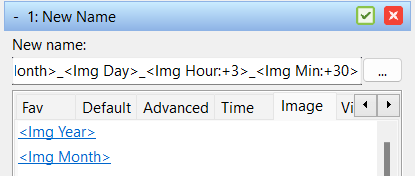
<Img Hour:+2> tag.This feature is supported for most date and time tags.
See the user guide for more information about adjusting date and time based output values.
Full list of changes in version 4.04
- Fixed reading GPS metadata when coordinate is stored in "degrees, decimal minutes" instead of "degrees, minutes, seconds"
- Add folder window did not enable OK button when multiple folders are selected
- Fixed tag <Img SubSec> not always working
- Add or subtract numeric value when using date and time based tags: <Img Hour:+2> will add two hours and <Img Hour:-2> will subtract 2 hours. <Img Time:hh-mm-ss:+2h-40n> will add 2 hours and subtract 40 minutes.
- <Word:X> tag would sometimes zero pad values if the word was a numeric value
- Insert tag Window: When color theme is set to dark, the background of regular expressions description was not reflecting the theme
- Batch result panel showed some links in blue in dark theme
- When clicking the "Show errors" button in the batch result panel, the window would not be full size on high dpi displays
- Show error when changing timestamp for files in a readonly state
- For some MP4 files, the video timestamp tags didn't have any values
- Add folder window showed controls only for adding files when adding folders
- Folder panel did not allow multiselect
Version 4.03
2024-09-10Full list of changes in version 4.03
- Fixed "check for updates" always saying there is a new version available
- Undo batch window: Job list was sorted in the wrong direction
- Undo batch window: Fixed columns growing in width every time window is opened
- After batch, all items were removed, also unmarked items. When adding "All items" only previously marked items were added
- When removing an item from the list, new names were not updated immediately
Version 4.02
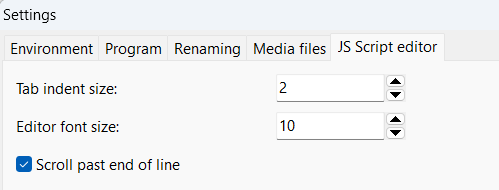
2024-09-06Change font size for script editors
GPS tag improvements
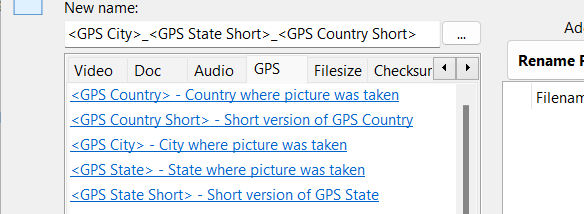
<GPS State> tag, you can now also use <GPS State Short>. Not all countries have states and not all states have short names,
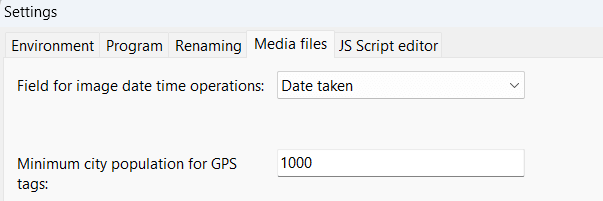
so the short tag version makes most sense in the US.When locating the city where an image was taken, the program will use a webservice to locate the nearest city to the coordinates of the image. It uses a database with every city with a population of more than 1000 people. If cities of a 1000 people are too small, the limit can be changed to a larger value in the settings window on the Media Files tab.
Full list of changes in version 4.02
- Settings: JS: Editor font size
- GPS tags with spaces, like "Country Short" did not work
- New GPS tag "<GPS State Short>" for short version of state. Not available for all countries. Mostly just the US.
- When using GPS tags, like <GPS City>, the nearest city of a certain size is used. The size can be changed in the settings on the Media Files tab (min 1000, max 1 mio)
Version 4.01
2024-08-27Full list of changes in version 4.01
- Fixed item details not allowing selection when filter has been applied
- F2 key for overriding new filename will now only fire when list is focused
- Metadata based columns and the columns Size and Extension is no longer available when folder mode is active
- When referencing the user guide, the program will open a guide made for version 4
- Added Help menu item to method header right click menu
- Fixed localization of message dialogs on Windows
- Made font in script editor easier to read
Version 4.0 Beta 4
2024-08-20Inc Alpha tags with multiple digits
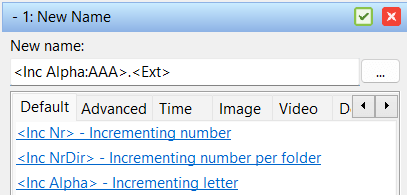
<Inc Alpha> tag, you can now use multiple digits. Add multiple digits to your starting value to get a
longer value. For example <Inc Alpha:AAA> will start at AAA and increment to AAB, AAC, and so on.
List Replce with regex replace characters
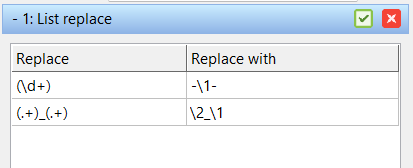
\1 and \2 to match groups in the search string.
This regular expressions feature is now also available in the List Replace method.
Full list of changes in version 4.0 Beta 4
- Better support for unicode characters for index based batch methods (like add text at index)
- Recently used methods list: Show message when no methods presets are found. When selecting non-existing preset, it will be removed from the list
- The tag <Inc Alpha> now supports multiple characters. Adjust padding with longer start value, like <Inc Alpha:AAA>
- Fixed when methods had a long custom description, the buttons to the right would be pushed off screen forcing a scrollbar to be shown
- Fixed localization not working on Windows for text spanning multiple lines
- List Replace method now supports regex replacement patterns like \1 or $1
- When loading and saving method presets, the recent dropdown box will keep the recent method selected
- Fixed dead links for the documentation on the insert tag panel
Version 4.0 Beta 3
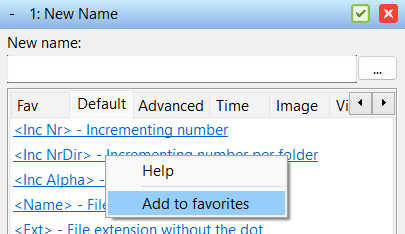
2024-08-07Tag favorites
Full list of changes in version 4.0 Beta 3
- Tag descriptions in New Name method are now available for translation
- Fixed columns not being localized to selected language at startup (proper fix)
- Fixed close button not always shown properly in about window
- MP3 Metadata: Fixed support when strings are encoded in a certain way
- MP3 Metadata: Added support for ID3v1 genre references in ID3v2 tags
- Swap and Replace method: Re-added Occurrence dropdown
- Fixed batch mode not being localized in the pre batch window
- CSV Export: Configure encoding, delimiter, quotes, and header before export
- Insert tag panel will remember the last used page when program is reopened
- Added favorites page to Insert tag panel. Right click tag to add to favorites
- Help buttons removed some places. Did not look good in some high DPI modes
- High DPI changes
Version 4.0 Beta 2
2024-07-30Batch method conditions
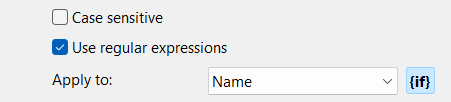
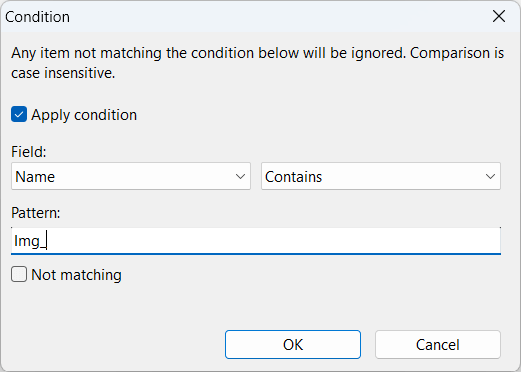
Note, the following methods don't support conditions: List, Script, and Timestamp.
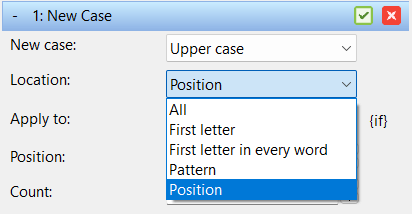
New layout and new options for New Case method
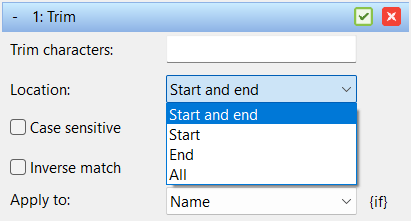
Trim method with more options
Allow extension change without pre rename warning

Full list of changes in version 4.0 Beta 2
- New method condition option: Include or exclude items for each method based on a pattern or regular expression. Available for most methods
- .lnk files will be ignored when tried added on Windows. The result of renaming shortcut files is just too unpredictable
- Reordered controls on Program tab in settings window
- Added option to disable warning message before renaming when extension has changed
- Trim method: Added trim location option: Start, End, Start and End, and All
- Trim method: Added inverse match option to remove all characters not matching the pattern
- New case method: New more compact UI
- New case method: Added new location option: Position, to change case based on position and count
- Replace method: Case sensitive option did not work with regular expressions
- Replace method: Fixed unmatched regular expression groups: When substitution like \3 and only two groups were found, it was substituted by $ instead of empty string. Change to match behavior of Advanced Renamer 3
- Replace method: Fixed changing case of matches when using regular expressions. Ver 3 supported using \U1 to uppercase the first group match. This is now also supported in Ver 4 by using \U$1. Also applies to \L, \u, and \l
- Fixed changing language did nothing on Windows
- When removing items from the list while Item Details was open, a removed item would sometimes still be displayed in the Item Details
- Scroll wheel no longer changes grid selection
- Fixed strings with line breaks were not always translated when using other languages than English
- Fixed columns not being localized to selected language at startup
- Fixed compact menu items not displaying correctly in other languages than English
- Color mode can now be changed explicitly in the Settings window (Windows only)
Version 4.0 Beta 1
2024-07-24File information panel and folder panel moved for a cleaner look
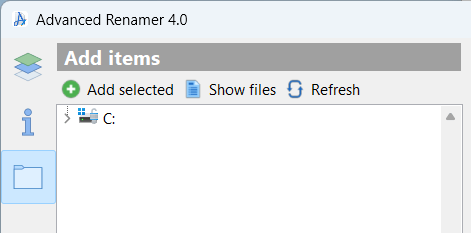
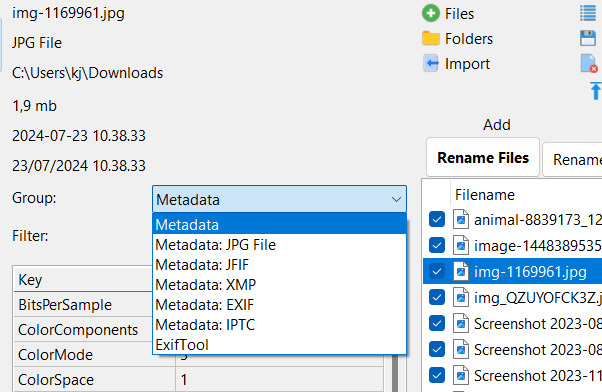
The item details window has also been completely redesigned to reflect the new way tags and columns use metadata.
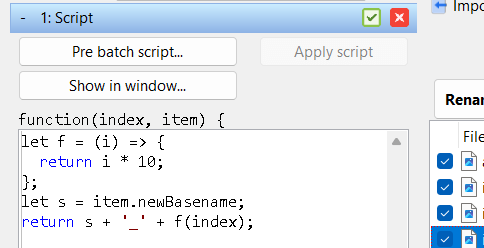
Scripting engine supports more JavaScript language features
Native metadata extraction without use of external tools
Speed improvements
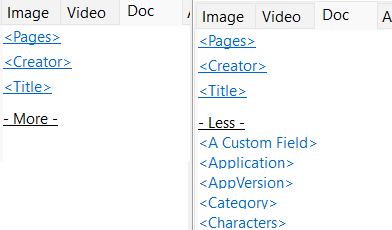
Any metadata value can be a tag ... and a list column
Removed features
Full list of changes in version 4.0 Beta 1
- New left panel with buttons for switching between method panel, folder panel, and info panel
- New file format for language files
- New scripting engine based on QuickJS
- Native support for retrieving metadata from many media formats
- Any metadata value can now become a column
- Adding files is now faster
- Import menu group has been removed. The items are now in a sub menu in the Add group
- In tags, metadata prefixes are now optional. This means that <Img Title> and <Title> are not the same. The default tag is now <Title>. This also means the space after the prefix is no longer optional. When using prefix, the space must separate the actual tag
- Speed improvement when parsing tags
- When padding numeric tag values with zero, as an addition to 0-notation, you can also just specify the number between 1 and 9. Both these are now valid: <Pages:000> and <Pages:3>
- Insert tag panel now shows a "Show more" button to reveal all metadata fields found in the files added to the program since startup. The list is divided into the 4 categories: Image, Audio, Video, and Document.
- Fixed maximum filename length on Mac incorrectly set to the same as on Windows
- Program will always attempt to replace invalid characters in tag values with a -. The replace character can be changed in settings
- Undo lists will automatically be deleted after 30 days
- Default setting for progress window is changed to close automatically
- After batch, added option to add unchanged items to the list
- A non-portable version of the program can no longer be changed to portable
- Removed show Explorer File Properties from list right click popup menu
- Removed image dimension tags with physical units, like <Img Width Inch>. Use instead <Img Width:0:inch>, <Img Width:0:cm>, or <Img Width:0:mm>
- Attributes method removed. Did not add enough unique functionality
- Column sets are no longer supported
- List no longer supports multiple display modes, like large icons
- Thumbnail mode has been removed
- Metadata writer is no longer available (might be added later)
Click here to see changes for earlier versions of Advanced Renamer.