Keyboard shortcut settings
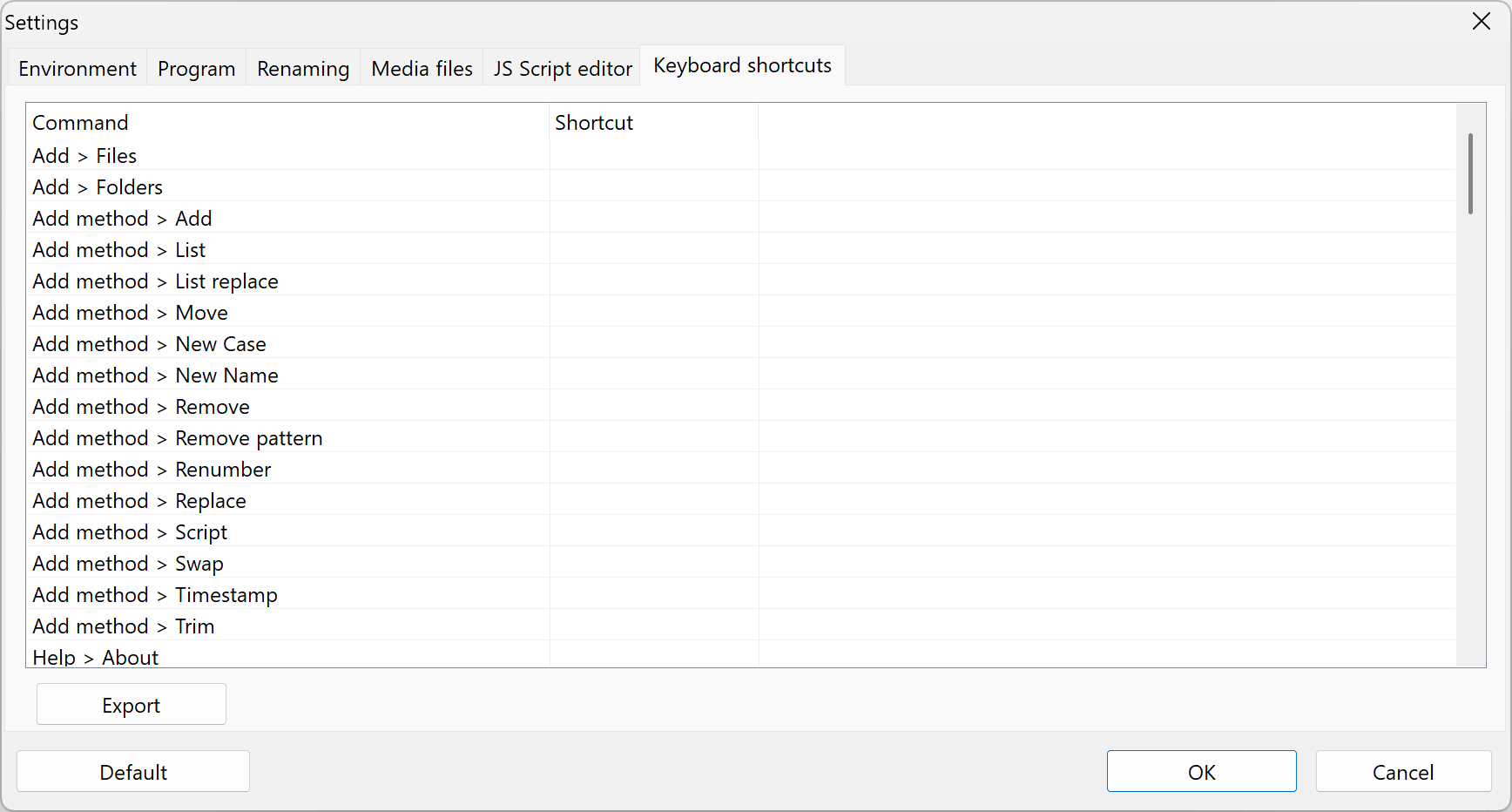
The Keyboard shortcuts tab lists all commands available in Advanced Renamer. The Shortcut column shows the keyboard shortcut combination currently assigned to each command. A blank value means that the command has no shortcut.
Change a keyboard shortcut
Double-click a command in the list to open the Keyboard Shortcut window.
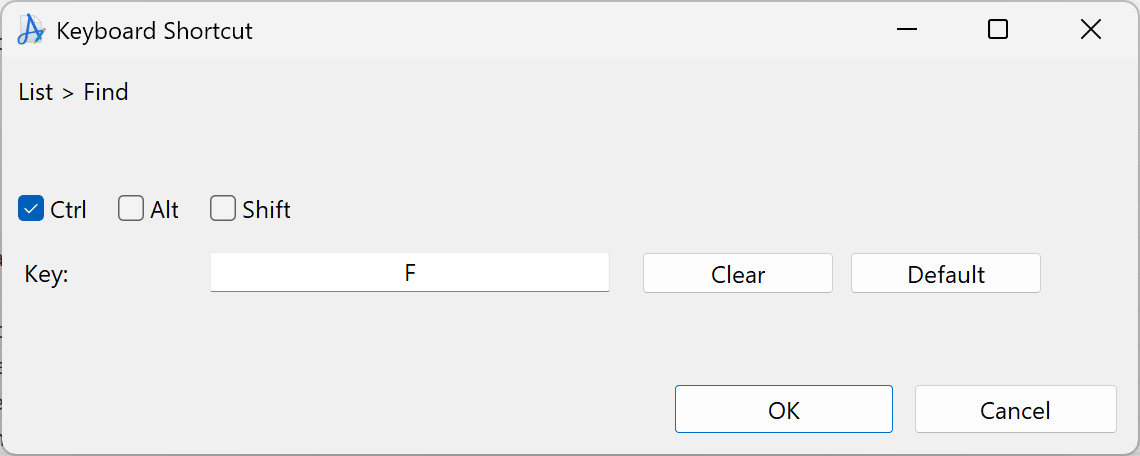
- Select one or more modifier keys, such as Ctrl, Option, Command, or Shift. The available modifier keys and their names depend on your operating system.
- Enter the key to use in the Key field.
- Click OK to apply the shortcut to the selected command.
Click Clear to remove the shortcut from the command, or Default to restore the command's default shortcut.
Other options
Export
Export the command list and its current keyboard shortcuts to a CSV file.
Default
Restore all keyboard shortcuts to their default values.