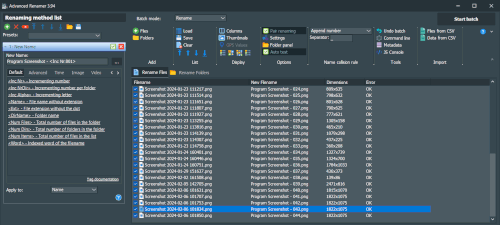
User Interface settings
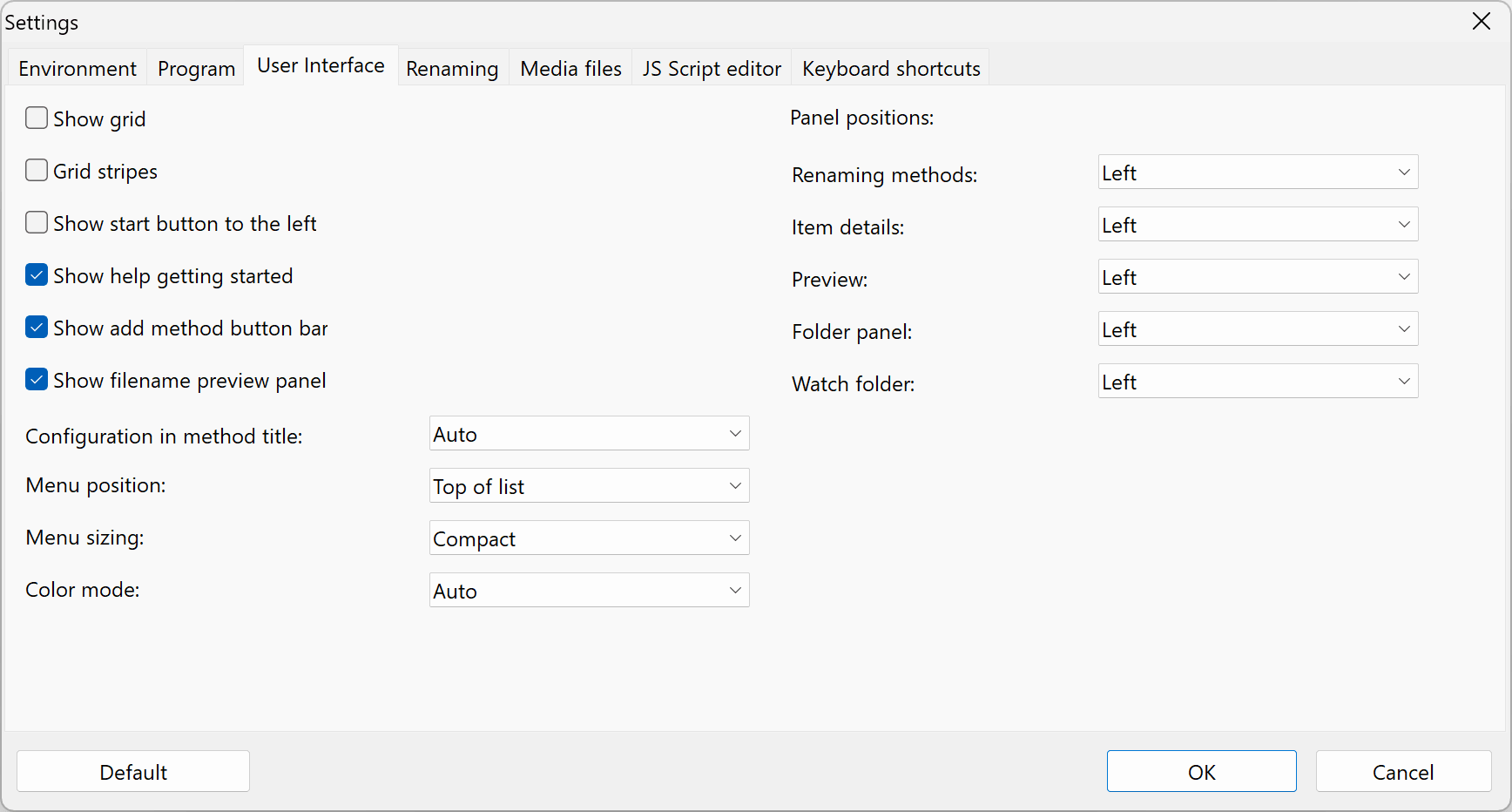
Show grid
Toggles the file and folder list grid lines.
Default: Off
Toggles the file and folder list grid lines.
Default: Off
Grid stripes New in version 4.09
Toggles if the grid will be shown with stripes for better readability.
Default: Windows: Off, macOS: On
Toggles if the grid will be shown with stripes for better readability.
Default: Windows: Off, macOS: On
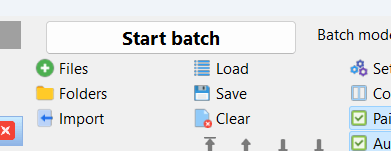
Show start button to the left
Some like the "Start batch" button to left other to the right. Choose your preferred position.
Default: Off
Some like the "Start batch" button to left other to the right. Choose your preferred position.
Default: Off
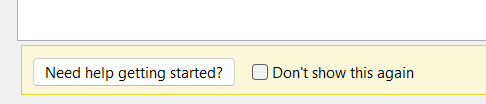
Show help getting started
Will display a button in the grid for fast access to the quick help when there is no files in the list.
Default: On
Will display a button in the grid for fast access to the quick help when there is no files in the list.
Default: On
Configuration in method title New in version 4.10
Choose if basic method configuration should be displayed in the method title to better distinguish between similar methods. The follow methods doesn't support this setting: List, List Replace, Script, and Trim Manual method description will always override this setting.
Default: Auto
Choose if basic method configuration should be displayed in the method title to better distinguish between similar methods. The follow methods doesn't support this setting: List, List Replace, Script, and Trim Manual method description will always override this setting.
| Auto: | Show configuration in title, if list has more than one of the same type. |
| Always: | Always show configuration in title. |
| Never: | Never show configuration in title. |
Show add method button bar
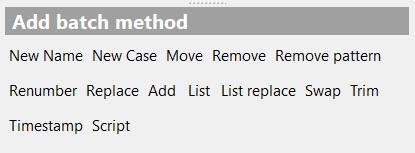
Determines if the button bar for quick access to adding methods should be visible.
Default: On
Determines if the button bar for quick access to adding methods should be visible.
Default: On
Show filename preview panel New in version 4.28
Determines if the filename preview panel should be visible when a list item is selected.
Default: On
Determines if the filename preview panel should be visible when a list item is selected.
Default: On
Panel position New in version 4.24
Choose for each individual panel if it should be positioned to the left or right of the file and folder list. When multiple panels are set to the same side, they can be accessed by clicking a button next to the active panel.
Default: Left
Choose for each individual panel if it should be positioned to the left or right of the file and folder list. When multiple panels are set to the same side, they can be accessed by clicking a button next to the active panel.
Default: Left
Menu position
Set where the main program toolbar should be positioned. Choose "Top of window" to have the menu at the very top of the window spanning the entire width of the screen. Option "Top of list" will place the menu just above the list, but to the right of the method panel.
Default: Top of list
Set where the main program toolbar should be positioned. Choose "Top of window" to have the menu at the very top of the window spanning the entire width of the screen. Option "Top of list" will place the menu just above the list, but to the right of the method panel.
Default: Top of list
Menu sizing
Default: Compact
| Super compact: | Only displays a thin menu bar with dropdown menus representing each button group. This is the most space saving layout. |
| Compact: | Displays the program menu in the default state, with only a small amount of spacing between each menu item. |
| Normal: | The same as Compact but with more spacing between menu items. |
Super compact:

Compact:
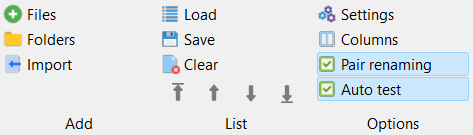
Compact:
Color mode Windows only
Choose between dark og light visual program user interface. When set to Auto, the program will choose the mode selected in Windows settings.
Dark color mode is supported on macOS, but only in auto mode.
Default: Auto
Choose between dark og light visual program user interface. When set to Auto, the program will choose the mode selected in Windows settings.
Dark color mode is supported on macOS, but only in auto mode.
Default: Auto