How to export metadata to a file
Case: I want to save metadata from my files to a file that I can open in a spreadsheet, view in a browser, or use in a script.
Advanced Renamer can export metadata such as photo dates, camera settings, audio tags, and video information together with filenames and paths. More metadata fields become available in the Export fields list when you add files to the main list. The available fields depend on the file type and the metadata stored in each file. You can export this information without renaming the files or starting a batch.
Export metadata to CSV
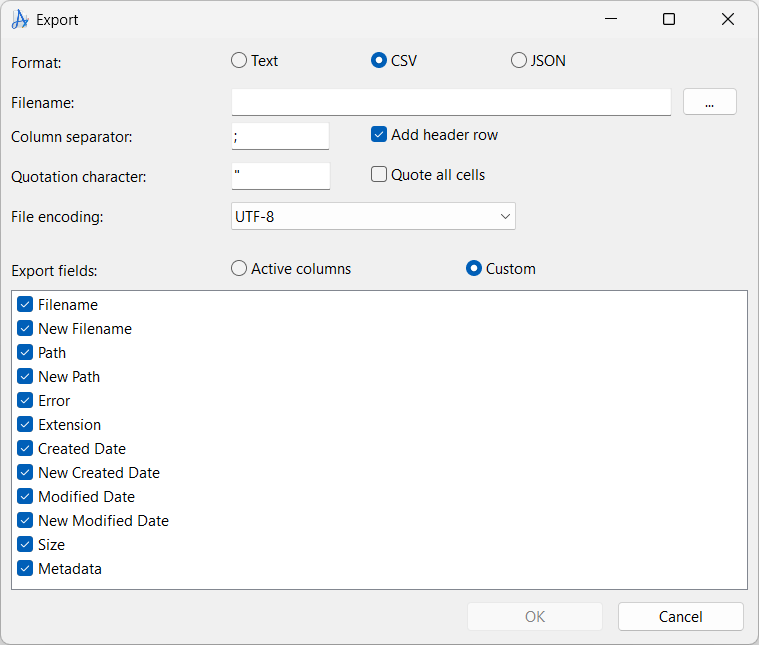
CSV is a useful choice if you want to open the result in Excel, LibreOffice Calc, or another spreadsheet program.
- Add the files to the file list
- Click Export in the list toolbar, or right-click the file list and choose Export.
- Choose CSV as the format.
- Under Export fields, choose Custom. Check Filename, Path, and Metadata, and uncheck any other fields you do not need. The Metadata option includes all available metadata fields.
- Keep Add header row checked so you can identify the fields in the exported file. Choose a Column separator that matches the program you will use to open it, for example
;or,. Leave File encoding set to UTF-8 to preserve special characters. - Click the ... button beside Filename and choose where to save the file, for example
photo_metadata.csv. - Click OK to export. Open the saved file in your spreadsheet program.
The result contains one row for each checked file and a separate column for each metadata field. Fields that have no value for any of the exported files are omitted. If a field is available for some files but missing from others, those cells will be empty.
Export only specific metadata fields
If you only need a few fields, such as the date taken and camera model, click Columns and choose More.... Move the fields you need from Available columns to Selected columns using the > button, then click OK. Add your files before choosing the columns to export.
Then open Export and choose Active columns under Export fields. This exports the columns currently shown in the list instead of including all metadata. Keep a filename or path column visible so you can identify each file.
Use JSON or HTML instead
The same Custom fields selection, including Metadata, is also available for these formats:
JSON
Use this for scripts and applications that work with structured data. Each file is represented by an object, with its metadata stored as key-value pairs in a MetaData object. Leave Compact unchecked for easier reading, or check it for output on a single line. JSON always uses UTF-8.
HTML
Use this to view the result in a browser or print it to PDF. Choose Table for an overview or Details for a separate table for each file. Include image preview adds previews of supported image files using links to the original files on your computer.
See Export list for more information about the formats and their options.