How to correct file extension
Case: I want to change the file extensions of a batch of wrongly named files.

A file extension is the part of a filename after the last dot, such as .jpg, .txt, or .mp4. It tells the operating system what type of file it is and which program should open it.
There are several practical reasons to change file extensions, like to correct wrong extensions, such as .txt mistakenly added to an image or to standardize extensions (e.g. .jpeg to .jpg)
Note: Changing a file's extension does not convert its format. For example, renaming a .txt file to .jpg does not turn it into an image. The same goes for converting between image formats like .png to .jpg. The file's content remains unchanged, and it may not open correctly if the extension does not match the actual file type.
This is how you change file extensions in Advanced Renamer:
- Add the files to the list.
- If there are methods in the method list, click the Clear Methods toolbar
- Add the New Name method and configure it like this:
- New name:
jpg - Apply To: Extension
- New name:
- Verify the names in the list and click Start Batch.
Detect the extension from the file's content
New in version 4.28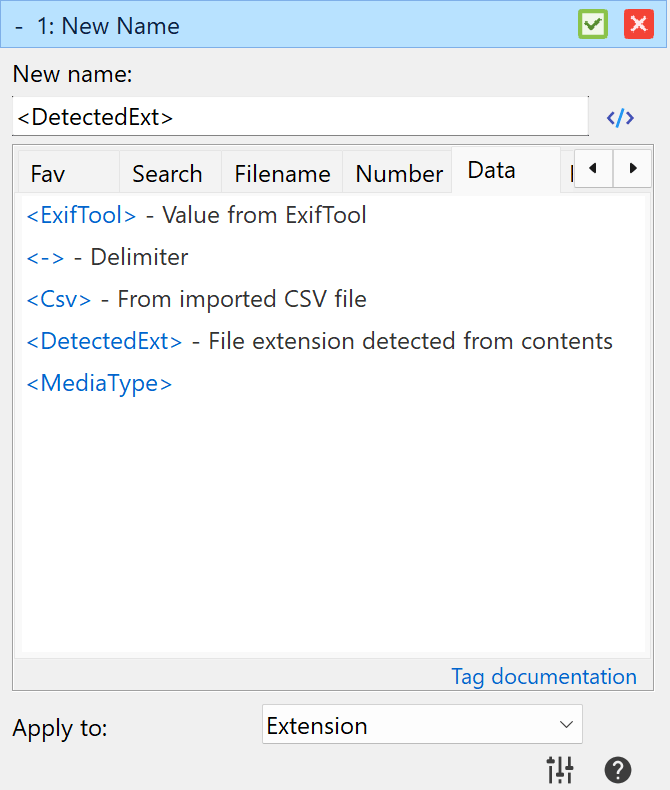
To correct extensions based on the actual file format, use the <DetectedExt> tag. It detects an extension from the content of each file and returns it without the dot. Use it to repair incorrect or missing extensions. This approach will also work for batches with mixed file extensions.
- Add the files to the list and clear any existing methods.
- Add the New Name method and configure it like this:
- New name:
<DetectedExt> - Apply To: Extension
- New name:
- Check the new filenames in the list, then click Start Batch.
For example, if photo.dat contains a PNG image, its new name will be photo.png. The name before the extension stays the same.
To make the detected extension uppercase, add the :upper tag modifier: enter <DetectedExt:upper> as the new name and keep Apply To set to Extension. The same example will then become photo.PNG.
You can also use the complete filename pattern <Name>.<DetectedExt>. To use this pattern, change Apply To to Name and extension. Use <Name>.<DetectedExt:upper> for an uppercase extension.
If the file format cannot be detected, the tag returns the existing extension. Renaming the extension does not convert the file's content.
By default, both Windows and macOS hide file extensions in their file managers. This means you might not see the part of the filename after the dot (like .jpg, .txt, or .mp4). To accurately rename or change file extensions, it’s helpful to make them visible:
- On Windows:
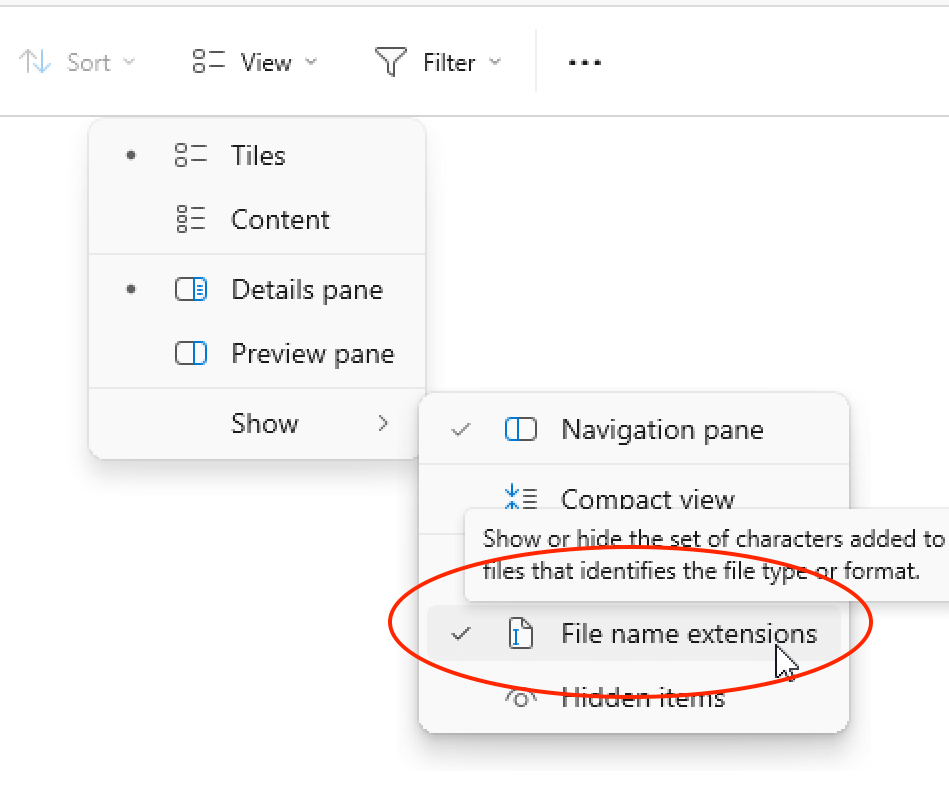
- Open ny folder in File Explorer.
- Click on View in the toolbar.
- Select Show > File name extensions.
- On macOS:

- Open Finder.
- In the menu bar, click Finder > Settings (or Preferences on older versions).
- Go to the Advanced tab.
- Check the box that says "Show all filename extensions."