Project settings
New in version 4.26The Project Settings window contains options for the current project, including a title and notes, automatic saving, filename validation, custom tags, and named counters.
Project
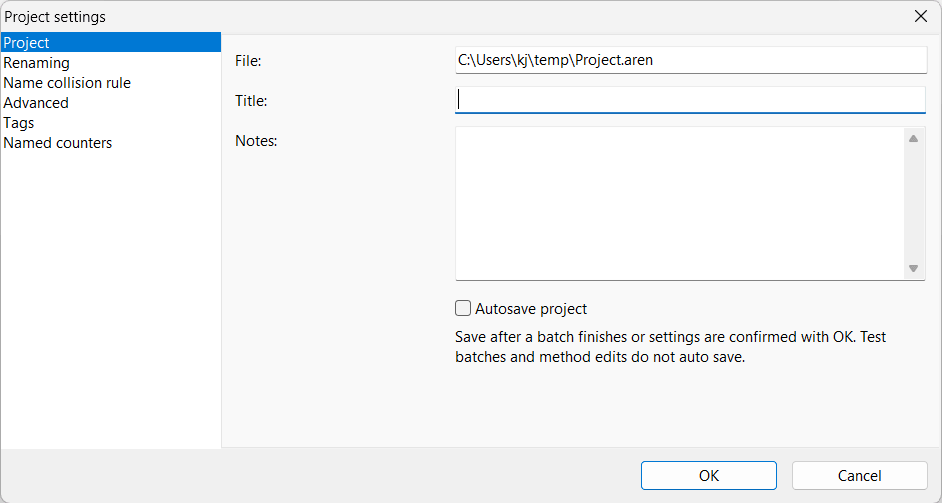
Note: The configuration on this page is only available for projects saved to a file.
Title and Notes
Give the project a descriptive title and add notes about its purpose or how to use it. For example, you can write instructions for preparing the files or describe the complete workflow process.
Autosave project
Save the project automatically after a batch finishes or when settings are confirmed with OK. Test batches and edits to renaming methods do not trigger an automatic save.
Renaming
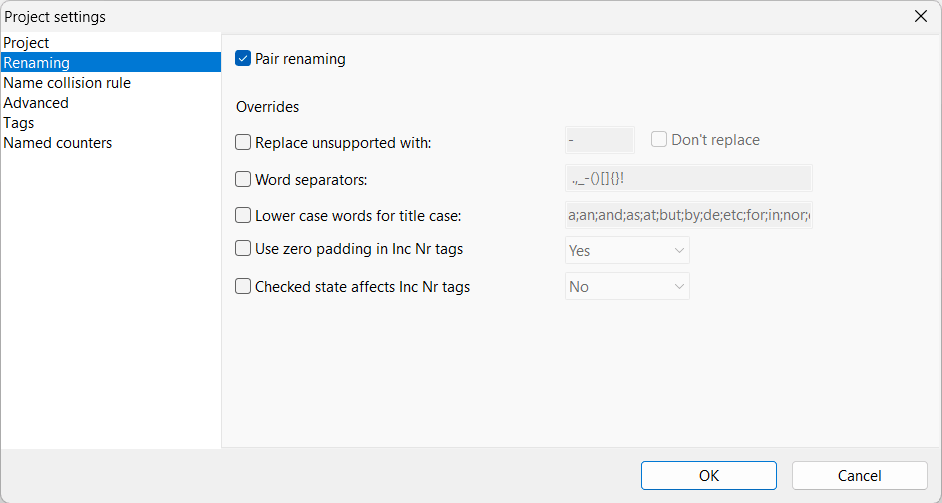
Enable Pair renaming to keep files with the same name but different extensions paired together. See File pairs for details and examples.
Under Overrides, check an option to use a project-specific value instead of the program setting. See Renaming settings for descriptions of each option.
Name collision rule
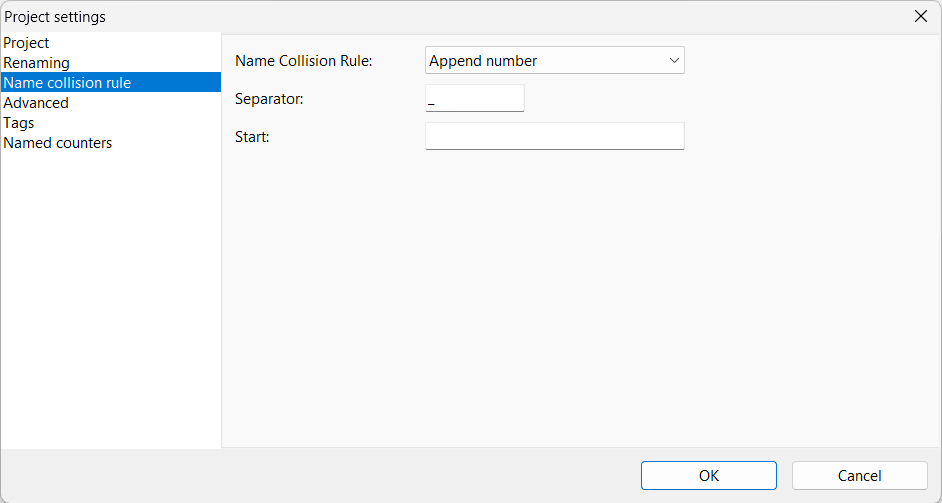
Choose how to handle files that would end up with the same name. The options shown depend on the selected rule. See Name collision rules for detailed descriptions and examples of the available rules.
Advanced
Default source path
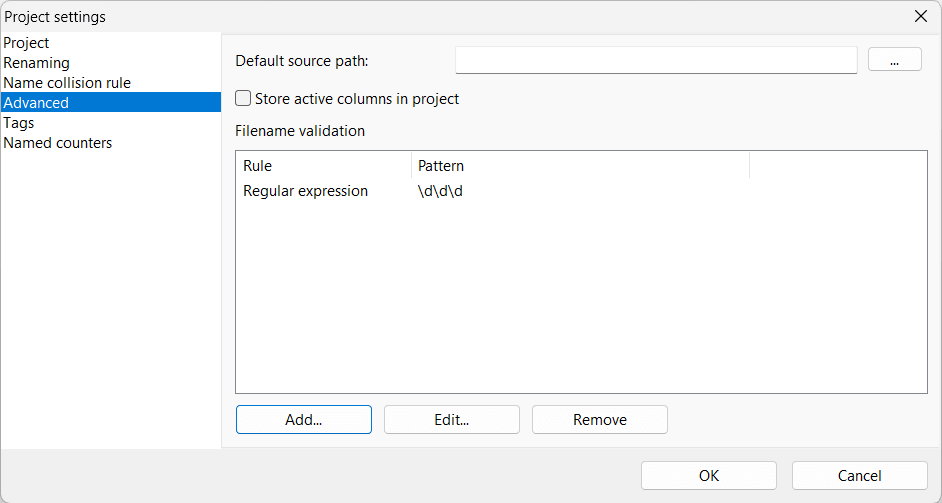
Set the default source folder for the project. Enter a path or use the browse button next to the field to select a folder. When set, the add files and add folders dialogs will start in this folder by default instead of using the last used folder.
Store active columns in project
Include the active columns of the item list in the saved project. When loading a project with this checkbox set, the columns of the list will be restored to the state when the project was last saved.
Filename validation
Define rules for checking filename validity during batch name testing. The list shows the rule type and its pattern. You can set up custom validation rules to check that a filename matches a pattern, contains specific text or has a specific length. This can help prevent naming errors in large batches.
Project tags
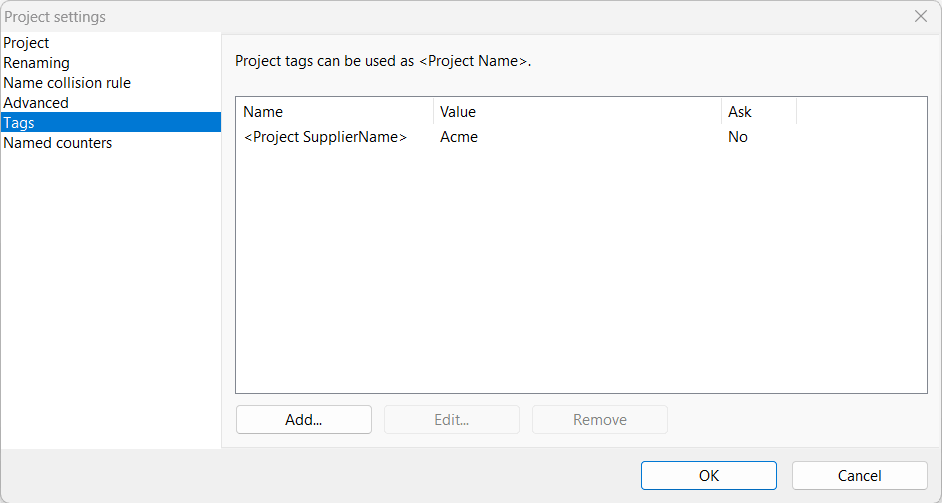
Define custom project tags to reuse values in your renaming methods. Reference a tag using <Project Name>, replacing Name with the name you assigned to the tag. Instead of finding variable values scattered across your batch method list, you can define them here in a single place instead. A custom project tag can be a static text, but can also be a complex string containing other tags. Project tags cannot contain other project tags.
In the screenshot, <Project SupplierName> has the value Acme. Using this tag in a naming pattern inserts the supplier name without having to type it into every method. Updating the tag's value lets you reuse the same pattern for another supplier.
If the Ask column is set to Yes, you will be prompted to enter a value for the tag when the project is loaded.
Named counters
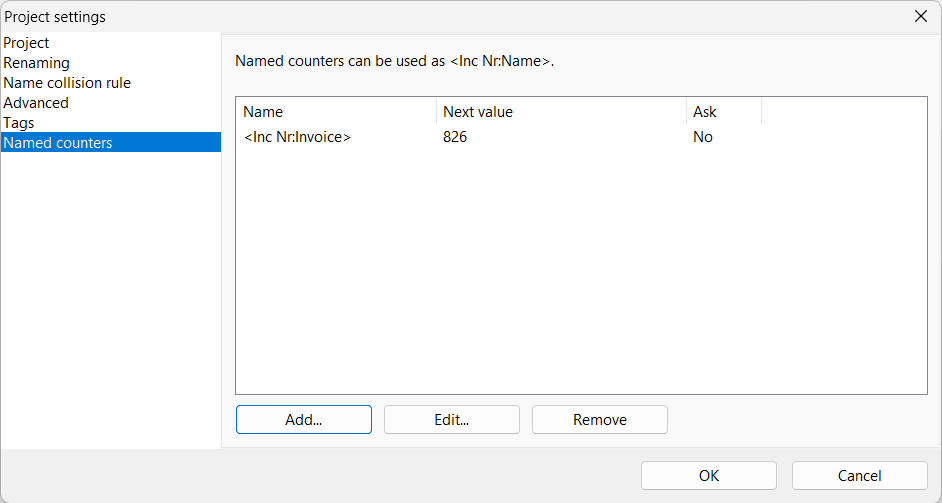
Named counters let you refer to a counter by name using <Inc Nr:Name>. Use them in naming patterns that need a numbered sequence that will persist across multiple renaming sessions. Unlike the standard <Inc Nr:1> tag which restarts the numbering for each batch, named counters continue from their last value, even after the program has been restarted.
The Name column shows the counter tag, and Next value shows the next number to use. In the screenshot, <Inc Nr:Invoice> has a next value of 826. A pattern such as Invoice_<Inc Nr:Invoice> combines a fixed prefix with the counter.
The Ask column indicates whether a counter value should be requested when the project is loaded.